
This guide shows how to add more devices, remove a device you no longer use, and get a connection file for VPN apps other than UniVPN.
Words used here
- Device: a phone, tablet, laptop or PC that uses the VPN.
- Access profile: one VPN plan you bought, with its server locations.
- Connection file (config): a small file that tells a VPN app how to reach our server. WireGuard and OpenVPN are two common types. If you use UniVPN, you do not need this file.
1. Add a device
- Open VPN > Devices.
- Click Pair New Device (number 1).
- Choose the plan, click Continue, and scan the QR code with UniVPN within 5 minutes.
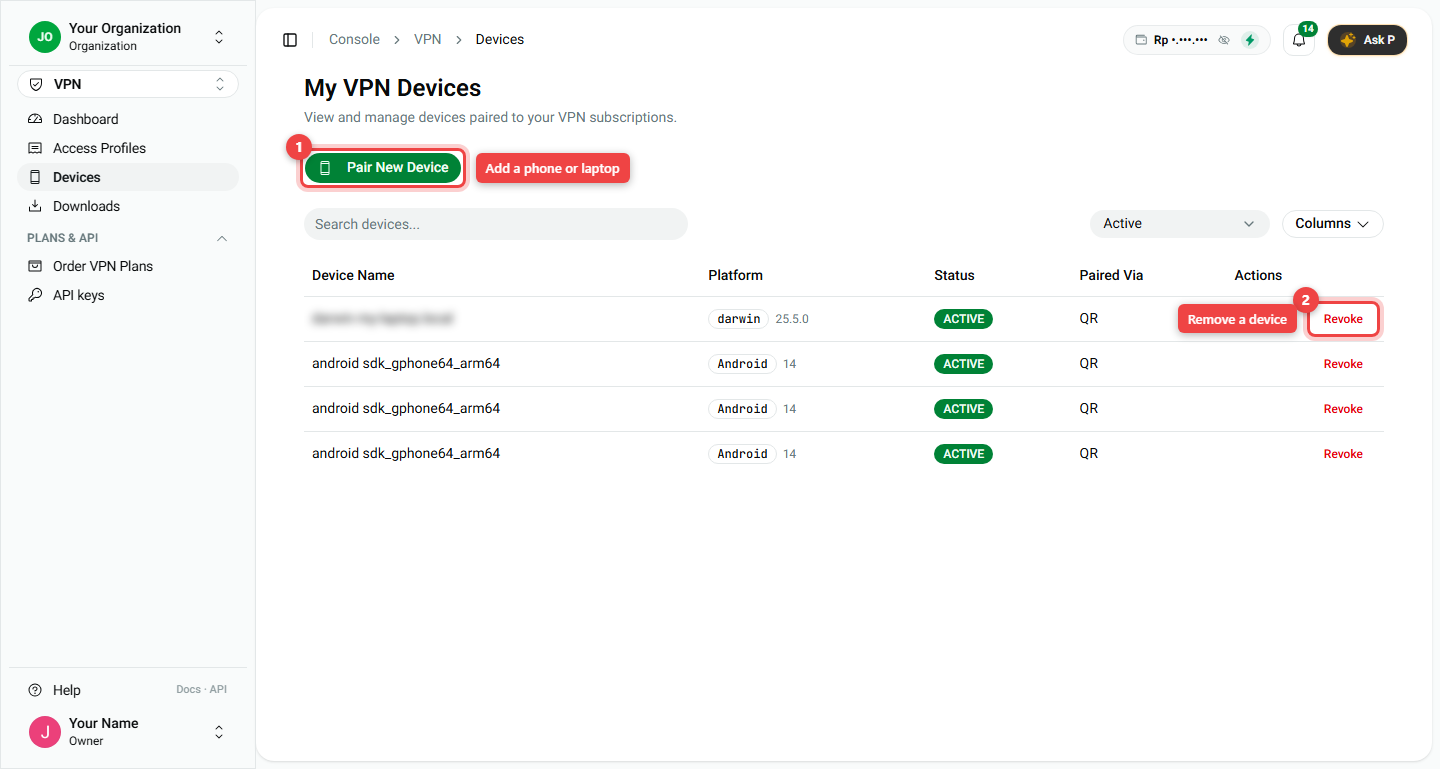
The list shows each device with its name, system (Android, Windows, macOS), status and how it was paired.
2. Remove a lost or old device
- Open VPN > Devices.
- Find the device in the list.
- Click Revoke (number 2) and confirm.
The device is signed out of UniVPN at once and can no longer use your VPN. This also frees one slot for a new device.
3. Get a connection file for another VPN app
Use this if you prefer the official WireGuard or OpenVPN app, or for a router.
- Open VPN > Access Profiles.
- On the plan row, click Get Config (number 1).
- A menu opens with each server location (number 2):
- WireGuard > QR: shows a QR code. Scan it with the WireGuard app on your phone.
- WireGuard > Download or OpenVPN > Download: saves the file. Open it in that app.
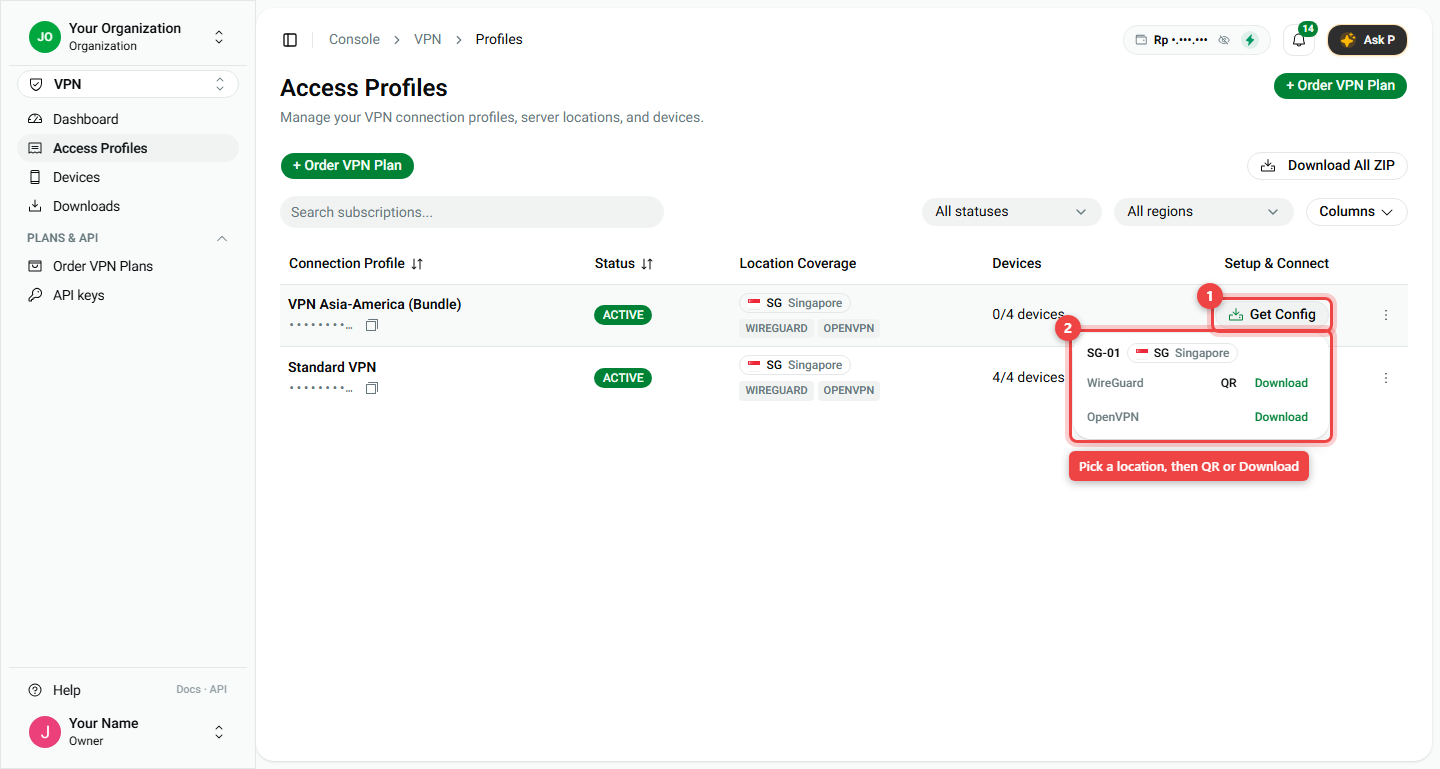
Need files for every location at once? Click Download All ZIP at the top right of the page.
4. More actions for a plan
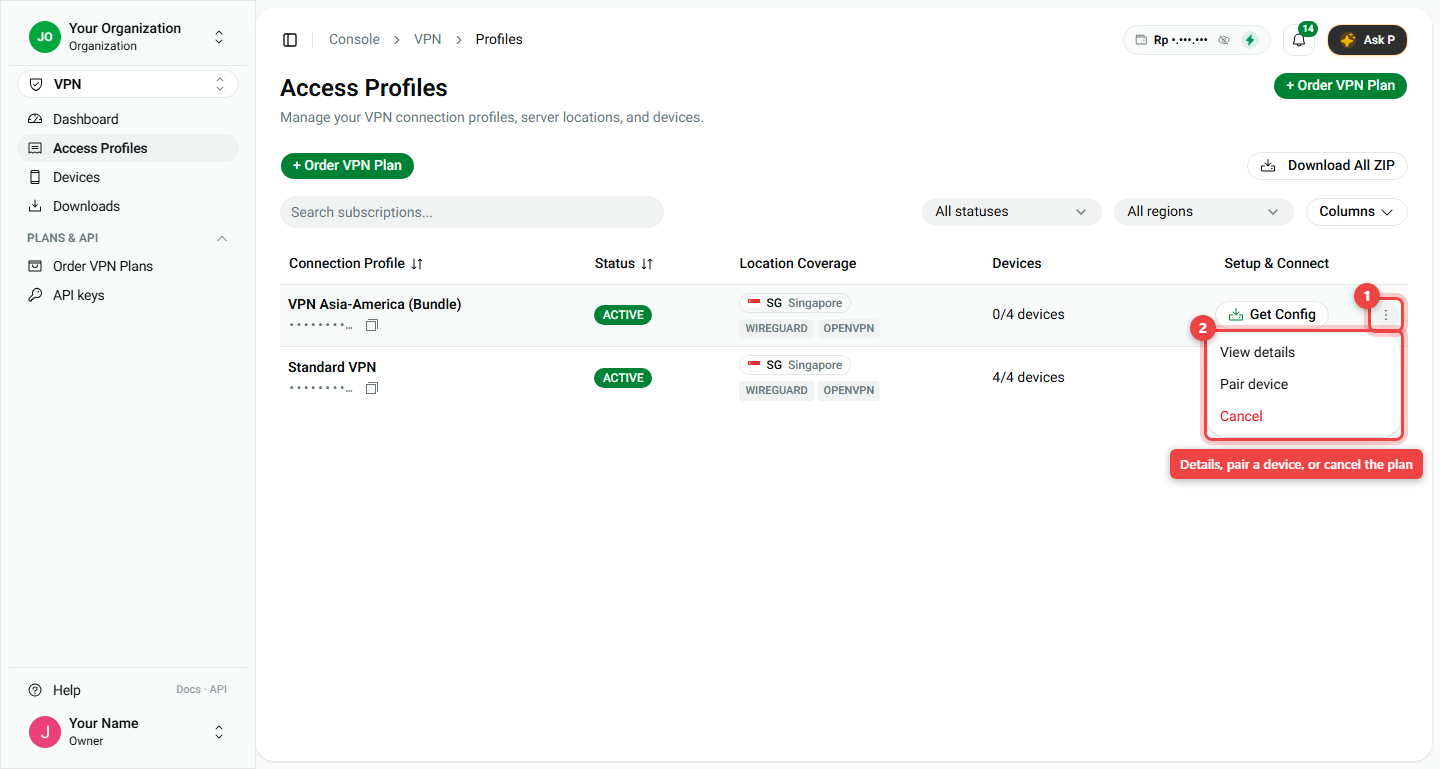
On the plan row, click the three dots ⋮ (number 1) to open the menu (number 2):
- View details: see dates, price, server locations and devices of this plan.
- Pair device: same as Pair New Device, already set to this plan.
- Cancel: stop the plan. See Manage or cancel your plan.
Summary
| I want to... | Go to | Click |
|---|---|---|
| Add a phone or laptop | VPN > Devices | Pair New Device |
| Remove a device | VPN > Devices | Revoke |
| Use the WireGuard/OpenVPN app | VPN > Access Profiles | Get Config > QR or Download |
| Get all files at once | VPN > Access Profiles | Download All ZIP |
- 2 devices per server location. Revoke old ones to make room.
- Treat connection files like passwords.