
1. Find your app
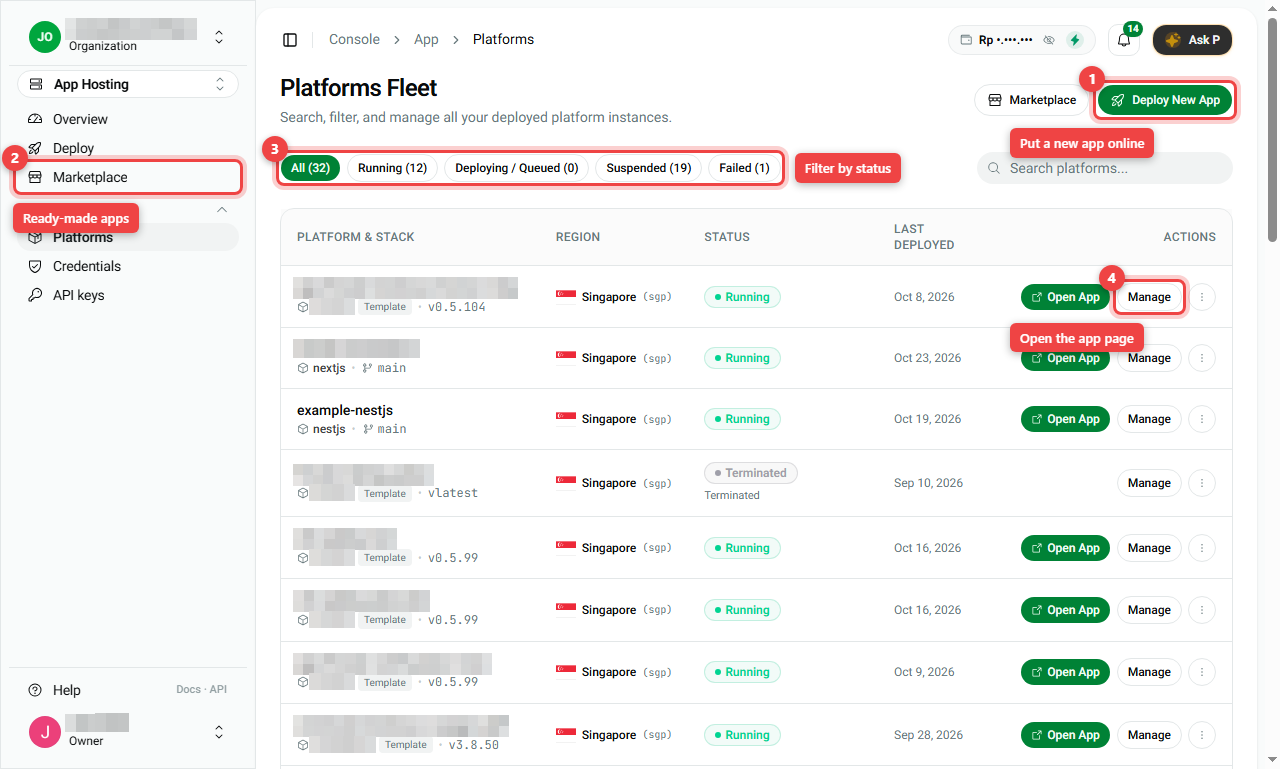
Open App Hosting > Platforms. Every app you have is listed with its region, status and last deploy date.
- Status filter (number 3): All, Running, Deploying / Queued, Suspended (paused, usually unpaid), Failed.
- Open App: visit the app. Manage (number 4): open its page.
- Deploy New App (number 1): add another app.
2. The top of the app page
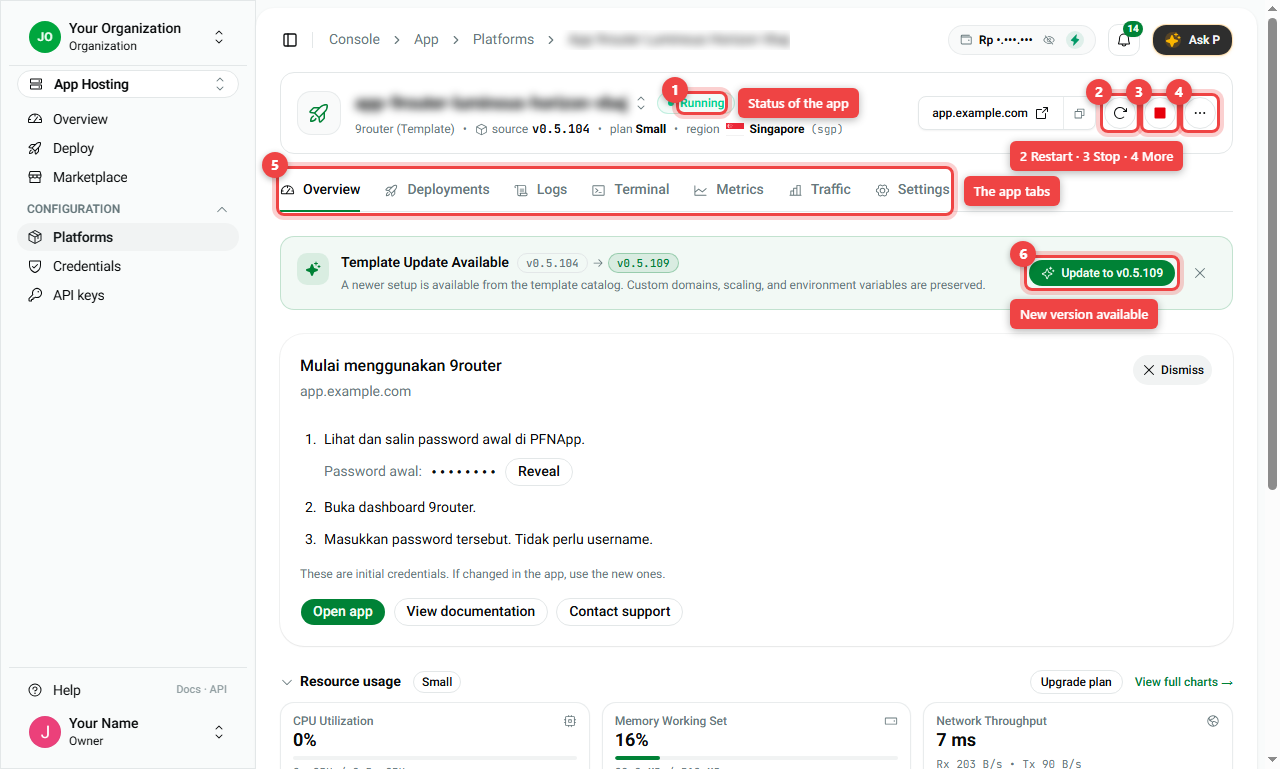
- Status (number 1): for example Running, Stopped, or Restarting….
- Restart (number 2): turn the app off and on again.
- Stop (number 3): turn the app off.
- More (number 4): Sync Config (apply the latest settings again) and Reinstall Template.
- Tabs (number 5): the sections of the app page, explained below.
- Update to v... (number 6): appears when a newer version of the app exists. Your domains, size and settings are kept.
3. Restart, stop and start
Restart: when the app is stuck or slow
- Click the round-arrow button (Restart app).
- Confirm with Restart.
- The app is unreachable for a short while (about 30 seconds). It is usually ready again within 1 minute. Your data and files are not changed.
Stop: turn the app off
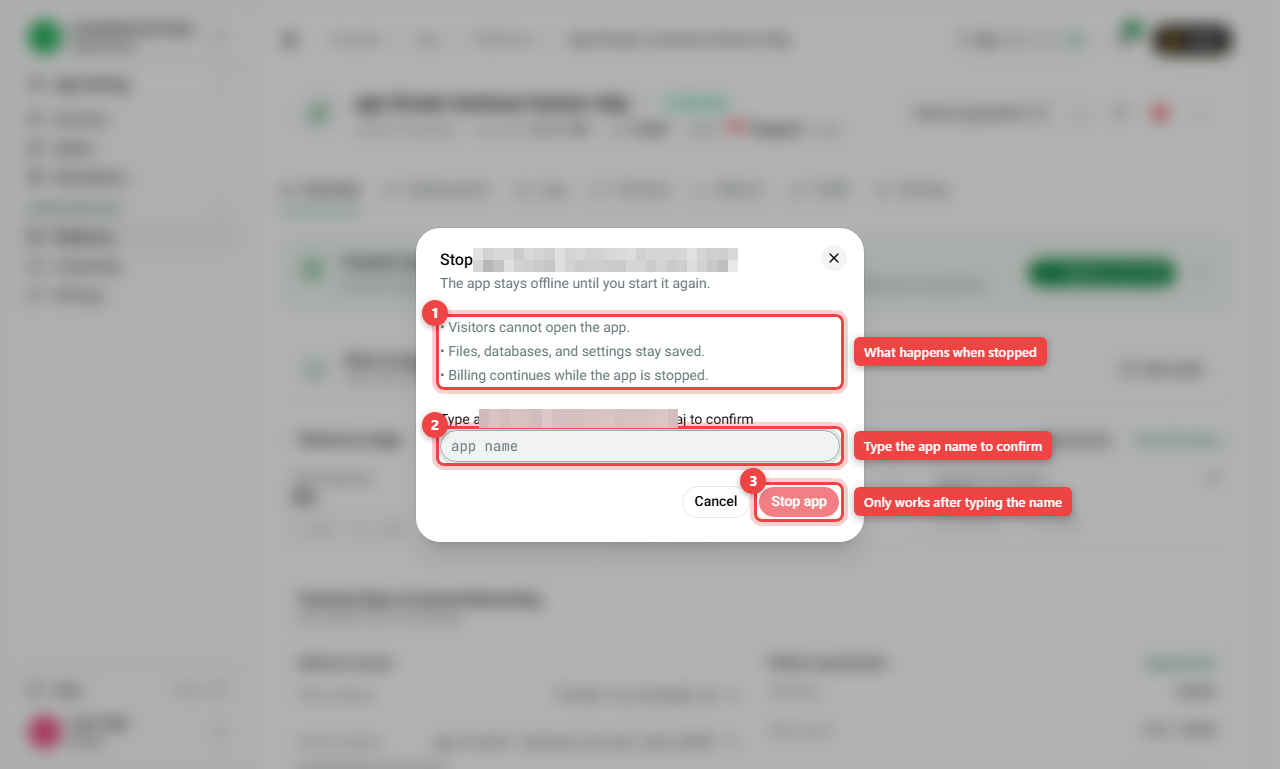
- Click the red square (Stop app).
- Read what happens (number 1): visitors cannot open the app, files and settings stay saved, and billing continues while it is stopped.
- Type the app name exactly (number 2).
- Click Stop app (number 3).
Start: turn it on again
A stopped app shows This app is stopped and a Start app button. Starting usually takes 1 to 2 minutes. The Terminal tab works again once the app is running.
Want to stop paying? Stopping is not cancelling. Cancel in Settings > Danger Zone. See Settings and Billing.
4. The tabs in plain words
| Tab | What it shows |
|---|---|
| Overview | A summary: the app guide (for example how to log in the first time), CPU and memory use, and the app's addresses |
| Deployments | Each time the app was put online, step by step. Look here if a deploy failed |
| Logs | Messages the app writes while running. Search for words like error, or filter by ERROR |
| Terminal | A command window inside the app. For technical users |
| Metrics | Live charts: visits per second, errors, speed, CPU and memory |
| Traffic | How many visitors, and how many are real people versus bots |
| Settings | Settings, domains, backups and cancelling. See Settings and Billing |
Apps from GitHub also have Security & Artifacts (security scan of your app) and a Deploy Update button to publish your latest code.
5. The App Hosting Overview page
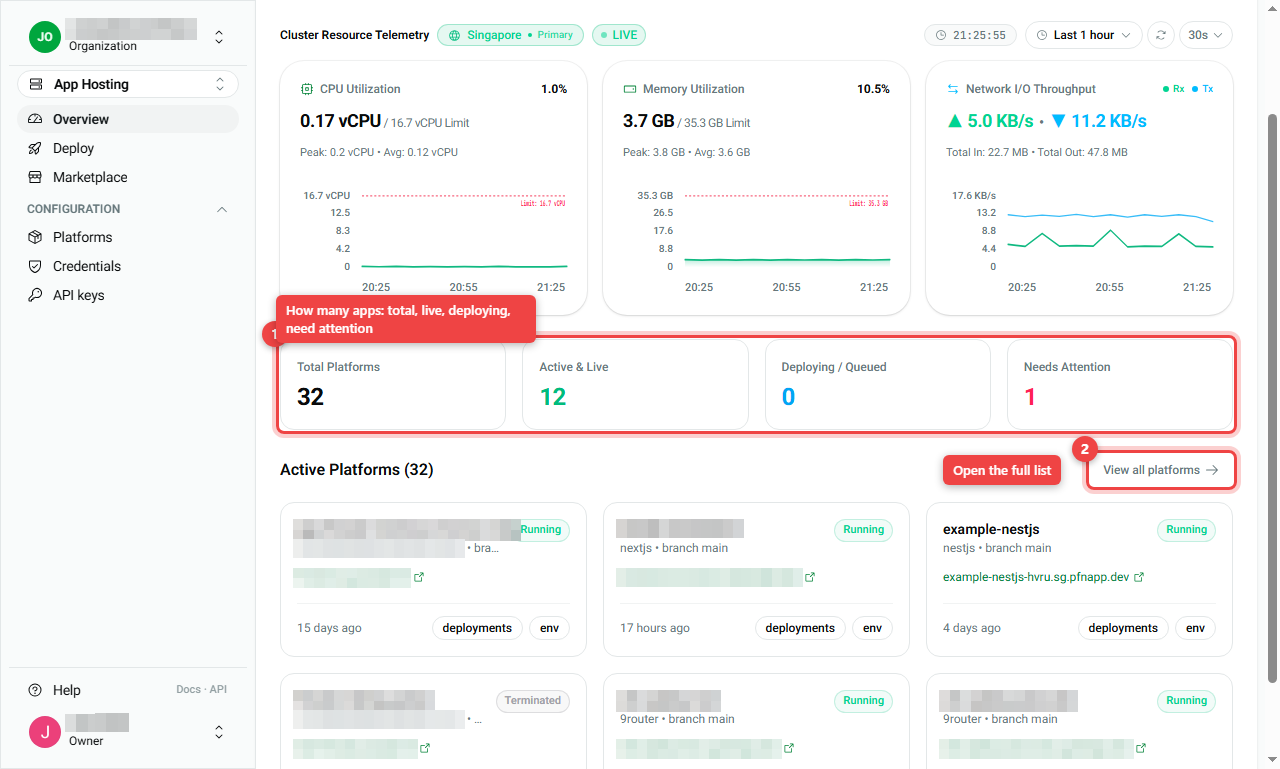
App Hosting > Overview is the first page of App Hosting. It shows:
- Cluster Resource Telemetry: live CPU, memory and network use of the servers in your region, for the last hour.
- App counts (number 1): Total Platforms, Active & Live, Deploying / Queued and Needs Attention (apps that failed or need a look).
- Active Platforms: a card per app with its address, last deploy, and shortcuts to deployments and env (environment variables). View all platforms (number 2) opens the full list.
Summary
| I want to... | Do this |
|---|---|
| Open my app's page | Platforms > Manage |
| Fix a stuck app | Restart (about 30 seconds offline) |
| Turn it off for now | Stop, type the name (billing continues) |
| Turn it on again | Start app |
| Get the newest version | Update to v... |
| See what went wrong | Logs or Deployments tab |
- Restart and stop never delete your data.
- To stop paying, cancel in Settings > Danger Zone.