
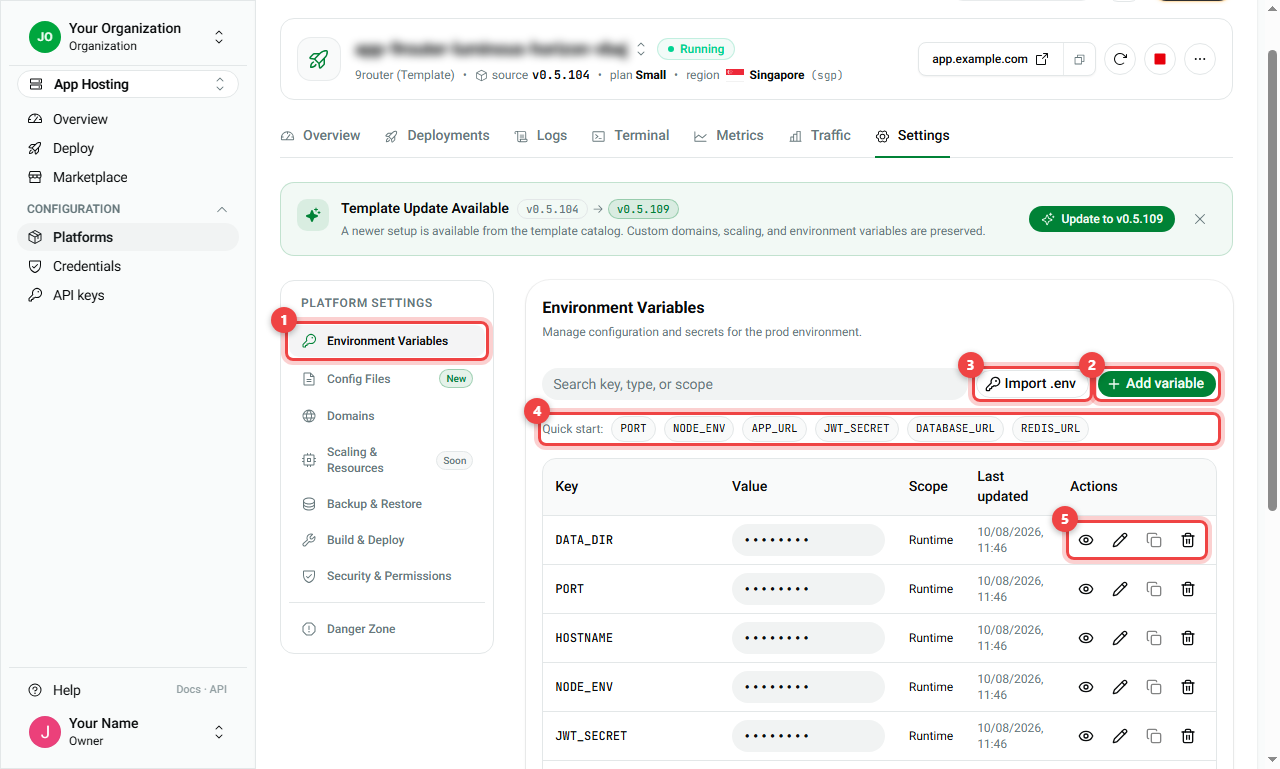
Open your app, click the Settings tab, and choose a section in the Platform Settings menu on the left (number 1).
| Section | What it is for | Guide |
|---|---|---|
| Environment Variables | Your app's settings and secret keys | Below |
| Config Files | Settings files inside the app | GitHub apps |
| Domains | Your web addresses | Domains |
| Health Check | Auto-restart when the app hangs (GitHub apps) | GitHub apps |
| Scaling & Resources | Bigger size or more copies. Coming soon | — |
| Backup & Restore | Download or restore your data | Below |
| Build & Deploy, Security & Permissions | Technical details, mostly managed for you | — |
| Danger Zone | Cancel the app | Below |
1. Environment Variables: your app's settings
Environment variables are named settings your app reads, like APP_URL (its address) or DATABASE_URL (where its database is). Secret keys live here too.
- Add variable (number 2): add one setting with a name and a value.
- Import .env (number 3): add many at once from a
.envfile (a text file withNAME=valuelines). - Quick start (number 4): click a common name like
PORTorNODE_ENVto fill it in. - Row buttons (number 5): show the hidden value (eye), edit, copy or delete.
Names use capital letters and underscores, like MY_SETTING. The same name cannot be used twice.
2. Backup & Restore: keep a copy of your data
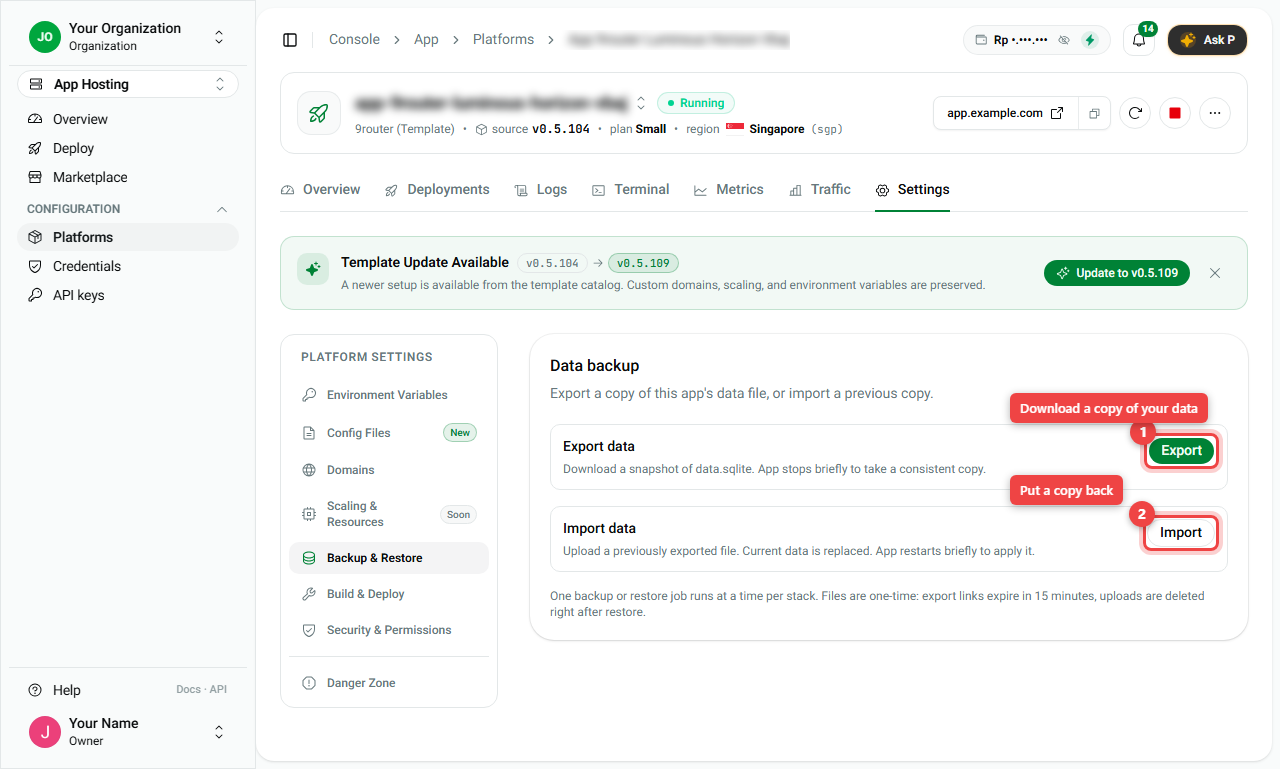
For apps that keep their data in a file (for example 9router):
- Export (number 1): downloads a copy of your data. The app pauses briefly so the copy is complete. The download link works for 15 minutes.
- Import (number 2): uploads a copy you exported before. Your current data is replaced, and the app restarts briefly.
Only one backup or restore runs at a time.
3. Cancel the app (Danger Zone)
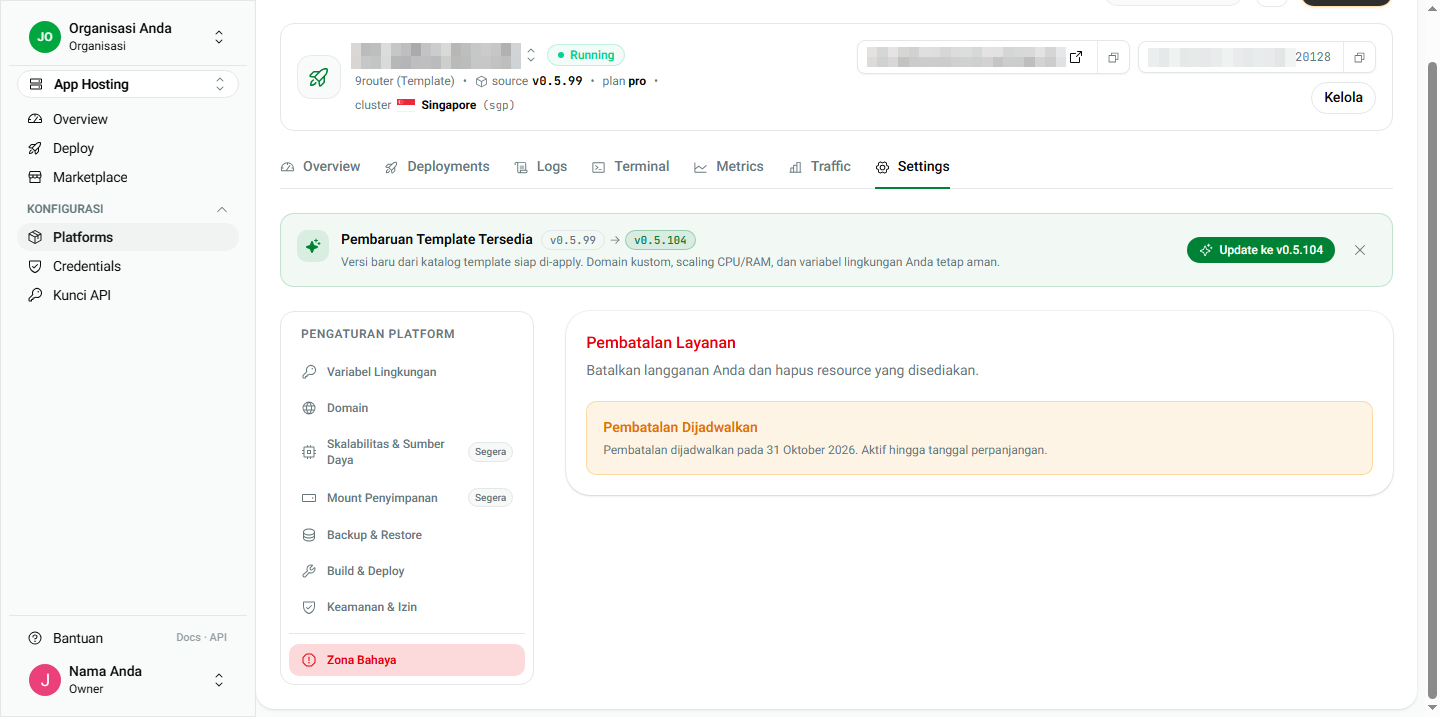
- Open Danger Zone and click Cancel Subscription.
- Type the confirmation text shown on the screen.
- Click Confirm Cancellation.
What happens next:
- The app keeps running until the end of the period you paid for. The page shows Cancellation Scheduled with the date.
- After that date, the app and all its data are deleted permanently.
- There is no refund for the rest of the period.
Export your data first (part 2) if you want to keep it.
4. How billing works
- Apps are paid from your organization balance (top right of the console). Top up with the lightning icon or in Console > Billing.
- The package sets CPU, RAM, disk and how many own domains you can add.
- Terms: monthly or annual (about 8% cheaper). Some big packages are per 6 months. The Small package is 1 month only.
- The price that counts is the one in the Deploy panel, because it depends on region and term.
- See all subscriptions and invoices in Console > Billing.
Summary
| I want to... | Go to |
|---|---|
| Change an app setting | Environment Variables > Add variable |
| Add many settings at once | Import .env |
| Save a copy of my data | Backup & Restore > Export |
| Restore a copy | Backup & Restore > Import (replaces data!) |
| Stop paying | Danger Zone > Cancel Subscription |
- Cancelling deletes everything after the paid period ends. Export first.