
If you or your developer wrote an app and keep the code on GitHub, App Hosting can put it online for you. An assistant reads your code and suggests the right size.
Only want a ready-made app? Use the Marketplace instead.
1. Private code? Add a GitHub token first
If your GitHub repository is private, the assistant needs permission to read it:
- Open App Hosting > Credentials.
- Click Add credential and add a GitHub Personal Access Token. Your developer can create one in GitHub.
- It appears in the list with status ACTIVE.
Public repositories need nothing.
2. Start the Deploy assistant
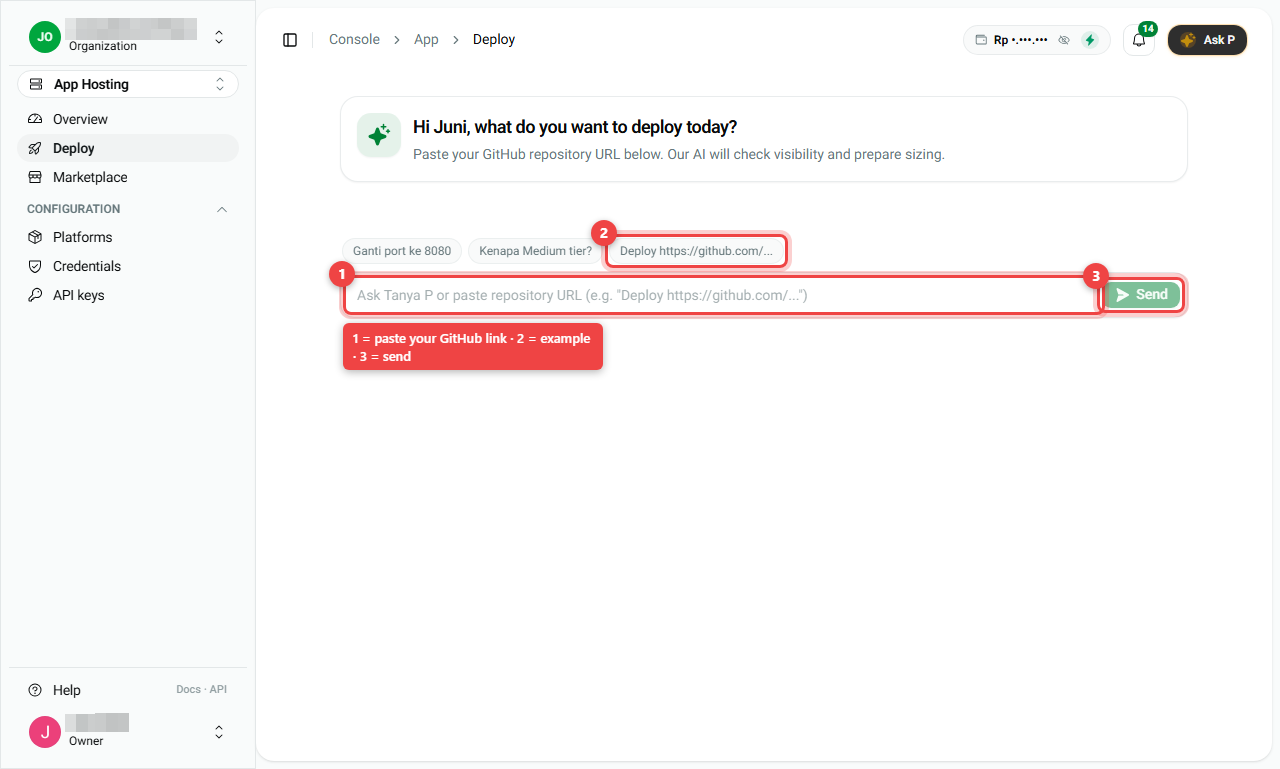
- Open App Hosting > Deploy.
- Paste your GitHub link in the box (number 1), for example
https://github.com/yourname/shop. You can also click an example (number 2). - Press Send (number 3).
- The assistant checks the code, finds the type of app, and suggests a package. You can ask it questions in plain words, for example "Why the Medium tier?" or "Change the port to 8080".
- Check the summary and the price, then confirm. Your app appears in Platforms.
3. Publish a new version
When your code on GitHub changes, open the app and click Deploy Update at the top. Follow progress in the Deployments tab.
4. Health Check: restart automatically when the app hangs
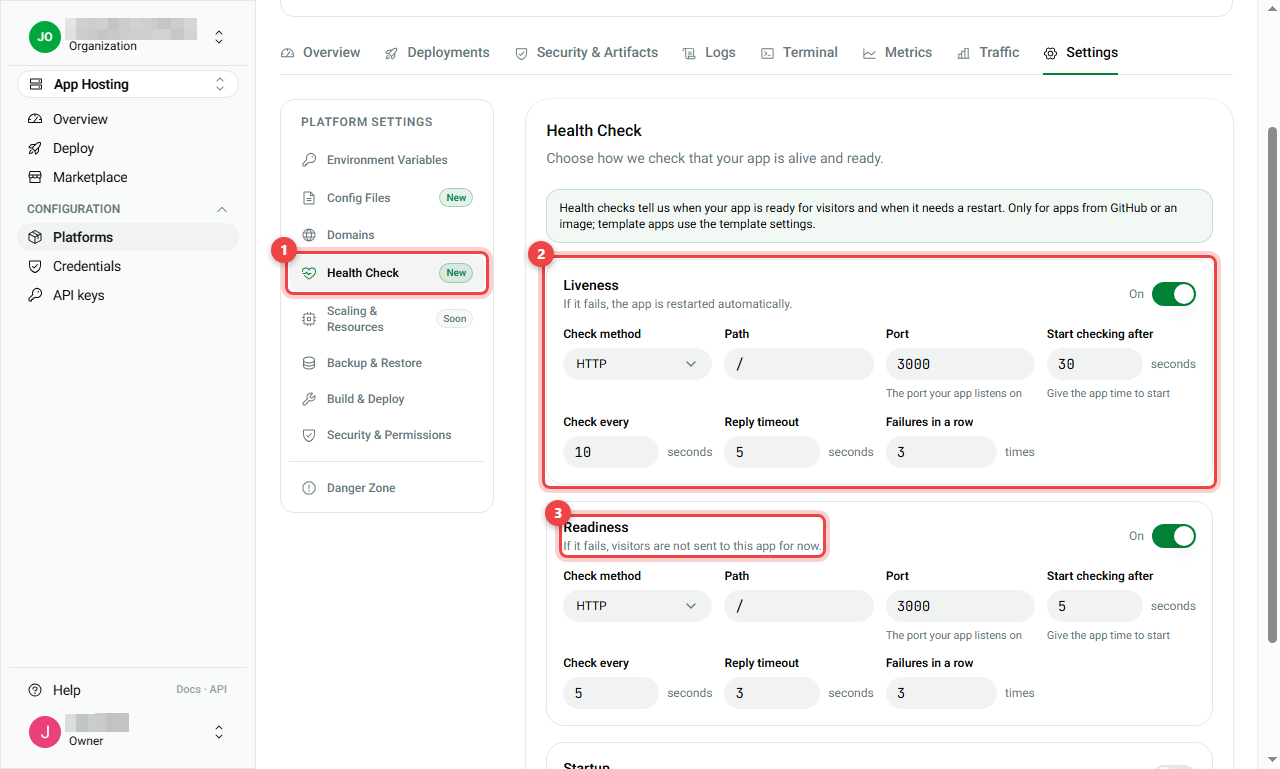
Open the app > Settings > Health Check (number 1). We regularly call your app to see if it is alive:
- Liveness (number 2): if the app stops answering, it is restarted automatically.
- Readiness (number 3): if the app is not ready, visitors are not sent to it for a moment.
- Startup: for apps that take a long time to start.
For each check you set the Path (for example / or /health), the Port, how long to wait before the first check, how often to check, and how many failures in a row count as "down". Your developer knows the right values. Click Save & apply. The app restarts gradually, visitors are not cut off. Reset to default brings back the original values.
5. Config Files: add settings files
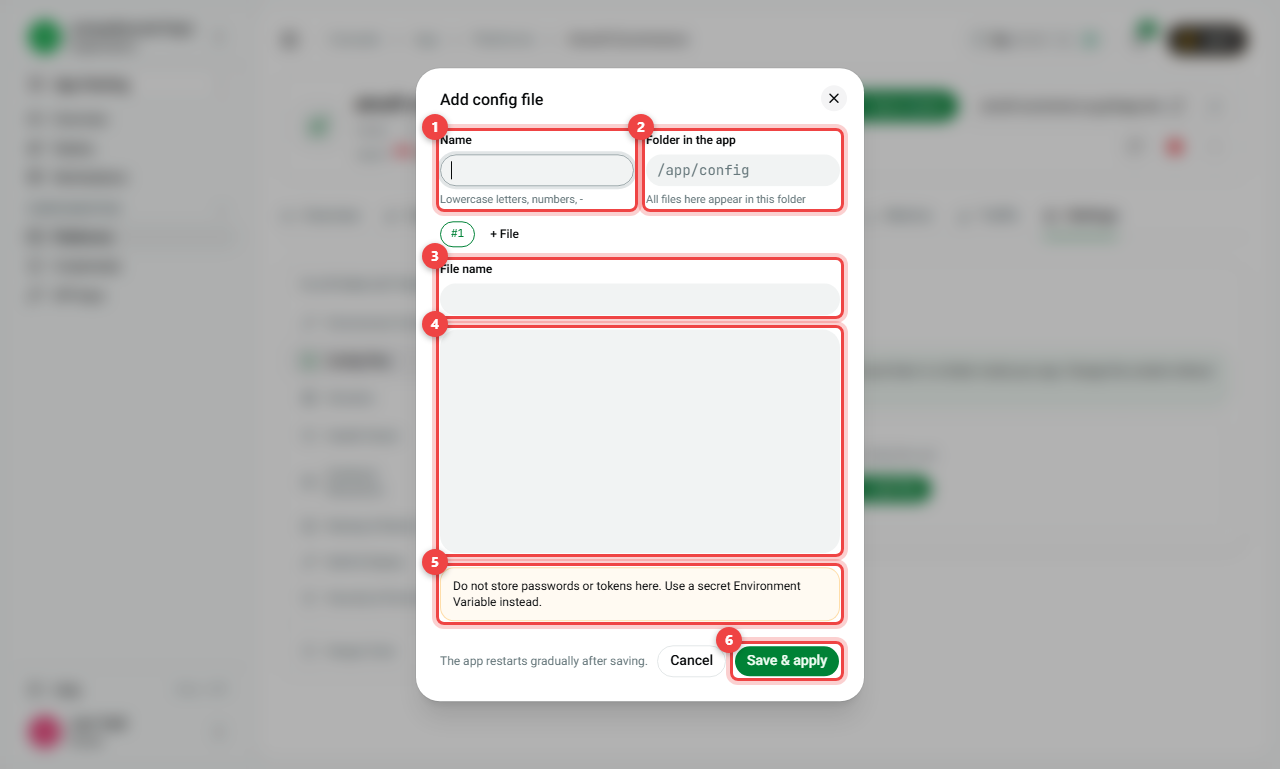
Some apps need a settings file (for example nginx.conf or settings.yaml). Open Settings > Config Files and click + Add file:
- Name (number 1): a short name, lowercase, for example
nginx. - Folder in the app (number 2): where the file should appear, for example
/etc/nginx. - File name (number 3): for example
nginx.conf. Use + File to add more files in the same folder. - File content (number 4): the text of the file.
- Read the warning (number 5): never put passwords or tokens here. Use a secret Environment Variable instead.
- Click Save & apply (number 6). The app restarts gradually.
Summary
| I want to... | Do this |
|---|---|
| Use private code | Credentials > Add credential (GitHub token) |
| Put my code online | Deploy > paste the GitHub link > follow the assistant |
| Publish new code | App page > Deploy Update |
| Auto-restart a hanging app | Settings > Health Check > Save & apply |
| Add a settings file | Settings > Config Files > + Add file |
- Passwords go in Environment Variables, not in Config Files.