
A template is a ready-made recipe for an app, like the ones in the Marketplace. If your team often installs the same app, make a template once and reuse it in a few clicks.
Steps 2 to 4 below need technical knowledge. A non-technical owner usually fills in step 1 and lets a developer do the rest.
1. Open the Template Builder
- Open App Hosting > Marketplace.
- Click Create Custom Template at the top right.
2. Fill in the four steps
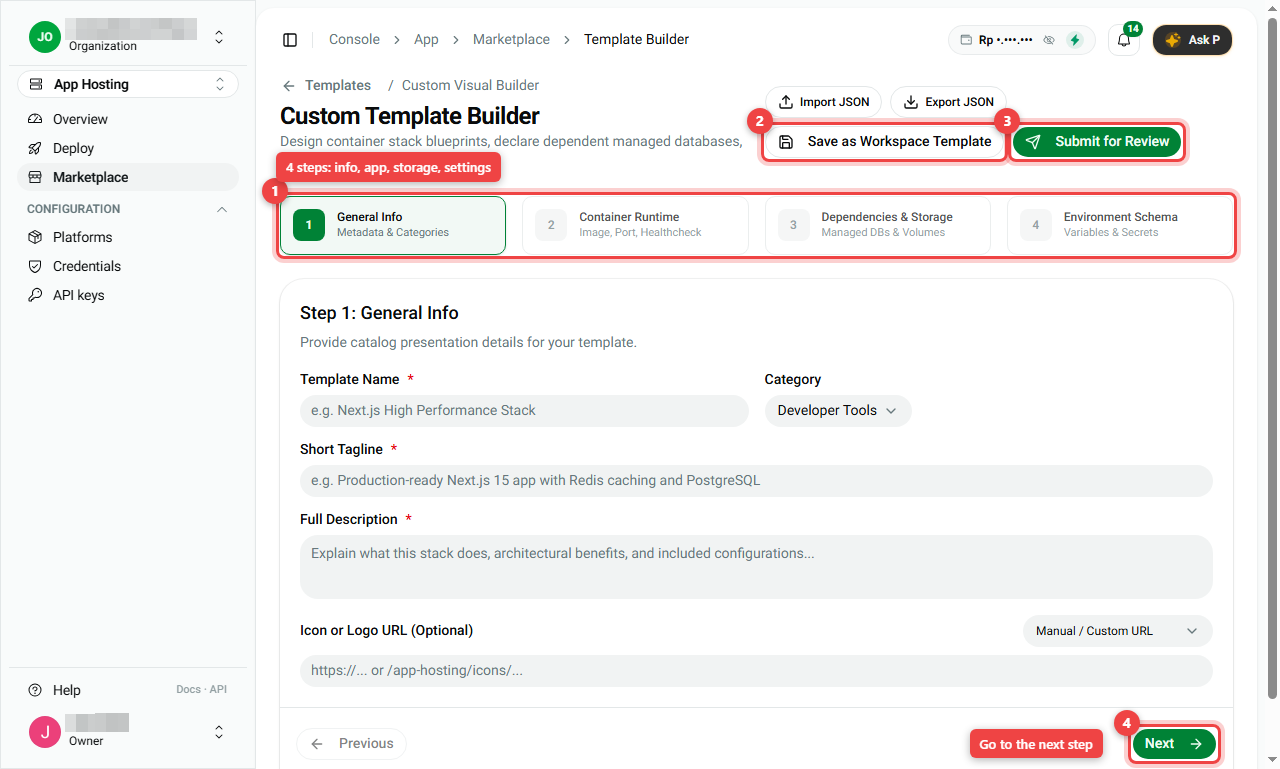
The steps are shown at the top (number 1). Use Next (number 4) and Previous to move between them.
- General Info: the template name, category, a short tagline, a description and a logo link. This is what people see in the catalog.
- Container Runtime: which app image to run, its port and health check. Technical.
- Dependencies & Storage: databases the app needs and where it stores files. Technical.
- Environment Schema: the settings (environment variables) and secrets the app asks for when someone installs it. Technical.
3. Save or publish
- Save as Workspace Template (number 2): keep it for your organization only.
- Submit for Review (number 3): ask our team to check it and publish it in the public Marketplace.
- Export JSON / Import JSON: save the template as a file, or load one from a file.
Your templates appear in Marketplace > My Workspace Templates, with their visibility status. From there your team can deploy them like any Marketplace app.
Summary
| I want to... | Do this |
|---|---|
| Make a template | Marketplace > Create Custom Template |
| Keep it for my team | Save as Workspace Template |
| Publish it for everyone | Submit for Review |
| Find my templates | Marketplace > My Workspace Templates |
- Step 1 is plain text; steps 2 to 4 are for your developer.