
The AI & Bot Builder (/console/whatsapp/workflows) empowers organizations to visually build multi-step conversational bots, automated customer support triage, dynamic catalog lookups, and AI-driven sales agents without managing backend server logic.
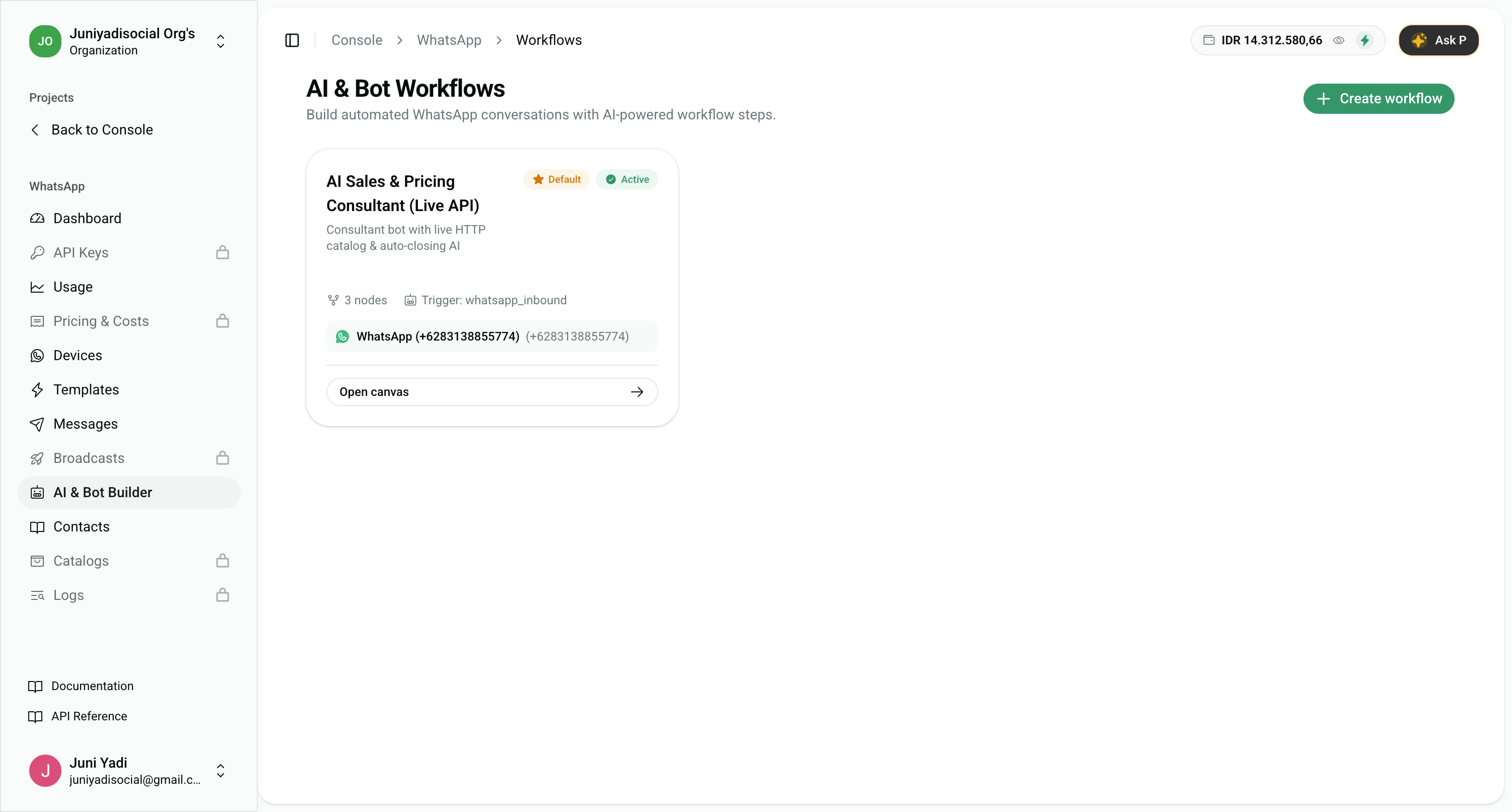
1. Workflows Overview & Management
In the AI & Bot Workflows overview:
- Active Flows: Monitor all deployed automations, node counts, and assigned phone numbers.
- Trigger Indicators: View trigger conditions (e.g.
whatsapp_inboundon+6283138855774). - Create Workflow: Start a clean workflow canvas from scratch or clone an existing template.
- Open Canvas: Enter the interactive drag-and-drop flow builder.
2. Interactive Visual Canvas Builder
Click "Open canvas" (/console/whatsapp/workflows/[id]/canvas) to access the full-screen visual workspace.
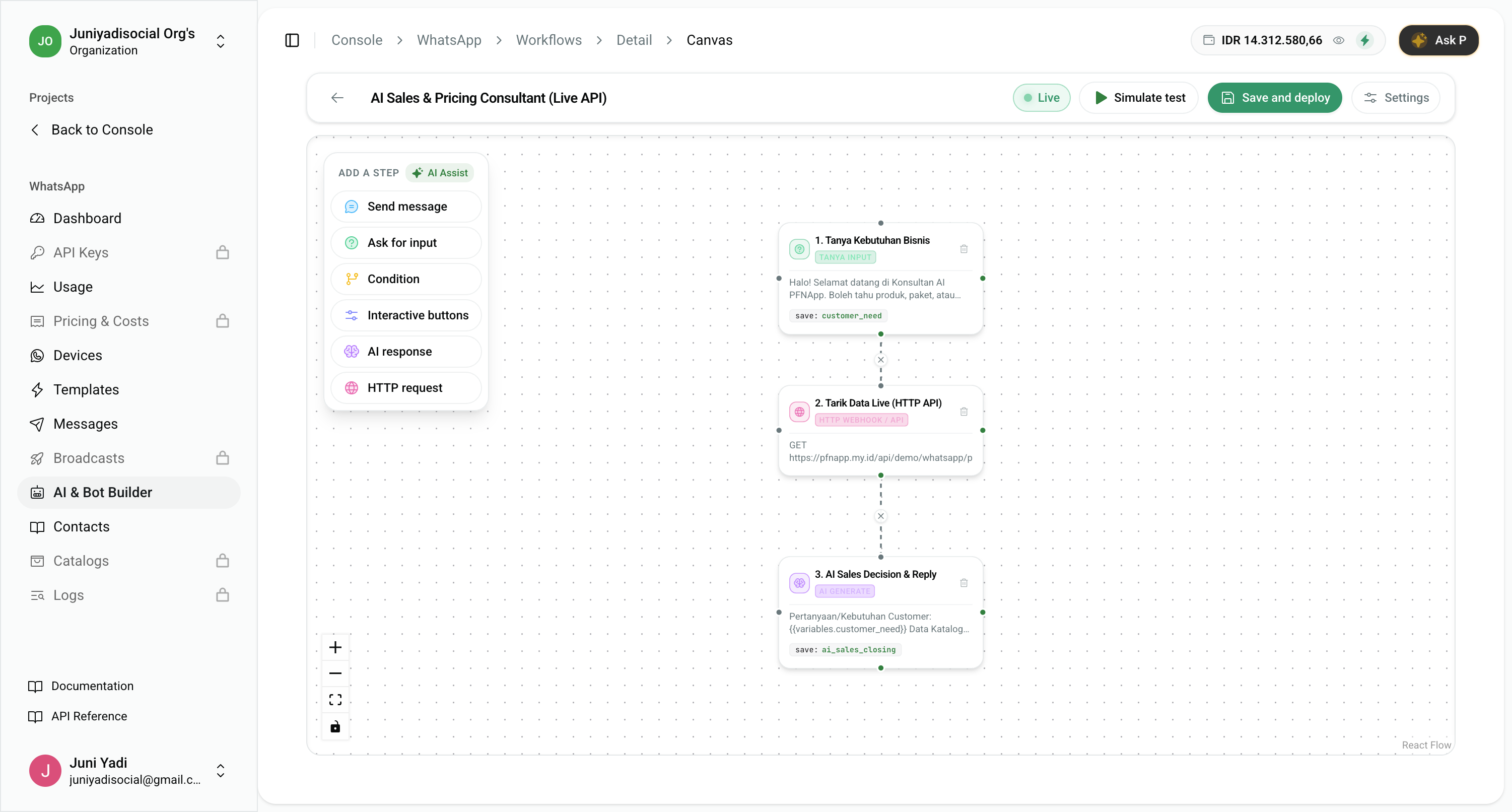
Canvas Controls & Toolbar:
- Workflow Name & Status: Edit automation name and inspect deployment state (Live / Draft).
- ADD A STEP Toolbar:
- AI Assist: Generate nodes and logic automatically with AI Copilot.
- Send message: Dispatch formatted text or media bubbles to the customer.
- Ask for input: Prompt customer for text or numbers and store the answer in a custom variable (e.g.
customer_need). - Condition: Branch execution based on variable evaluation.
- Interactive buttons: Provide quick-reply buttons or list messages.
- AI response: Run an LLM prompt using conversation context and external API results.
- HTTP request: Perform real-time GET/POST requests against external endpoints or internal catalog APIs.
- Deletable Edges: Connect any output port to an input port. Hover or click an edge to reveal the Delete edge action.
- Viewport Navigation: Pan, zoom in/out, and click Fit View for complete flow overview.
Dynamic Variable Interpolation:
Nodes pass data down the chain using clean template tags:
{{variables.<variable_name>}}: Values captured from Ask for input steps.{{steps.<node_id>.body}}: JSON response bodies returned by HTTP request nodes.
3. Interactive Bot Simulator
Before deploying changes to live production devices, test your logic end-to-end using the built-in simulator.
Click "Simulate test" in the canvas header to open the simulator dialog:
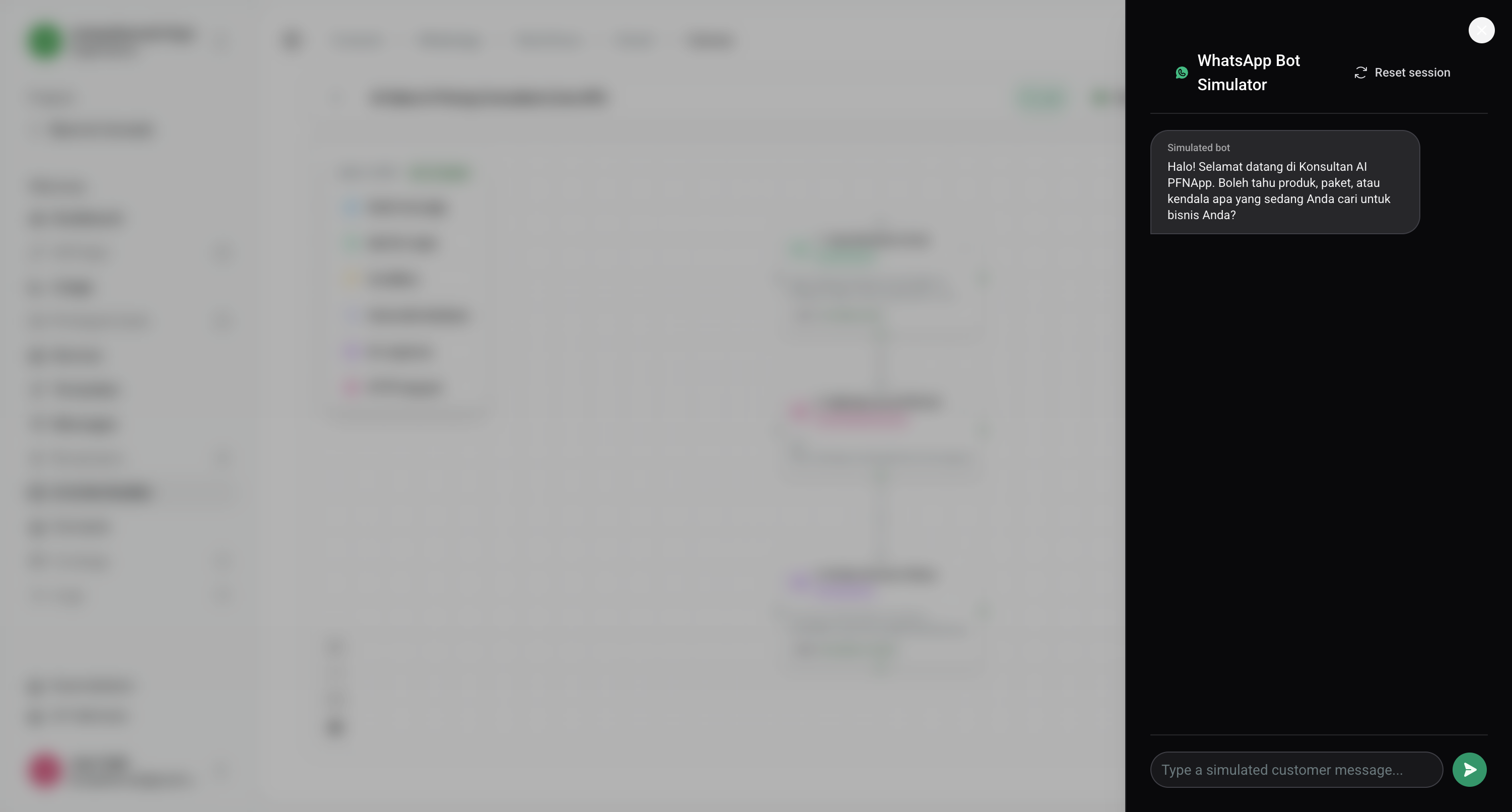
- Realistic Conversation Preview: See bot responses exactly as they will render on customer mobile devices.
- Interactive Chat Input: Type simulated customer queries to verify AI prompt reasoning and HTTP API integrations.
- Reset Session: Wipe the simulator memory to test fresh onboarding flows from step 1.
4. Deploying to Live Production
Once validated in the simulator:
- Click "Save and deploy" in the top navigation.
- The workflow will compile and activate immediately for all inbound messages on the assigned WhatsApp device.