
The Messages console (/console/whatsapp/messages) provides a unified workspace for manual message dispatch, customer support live chat, and delivery tracking.
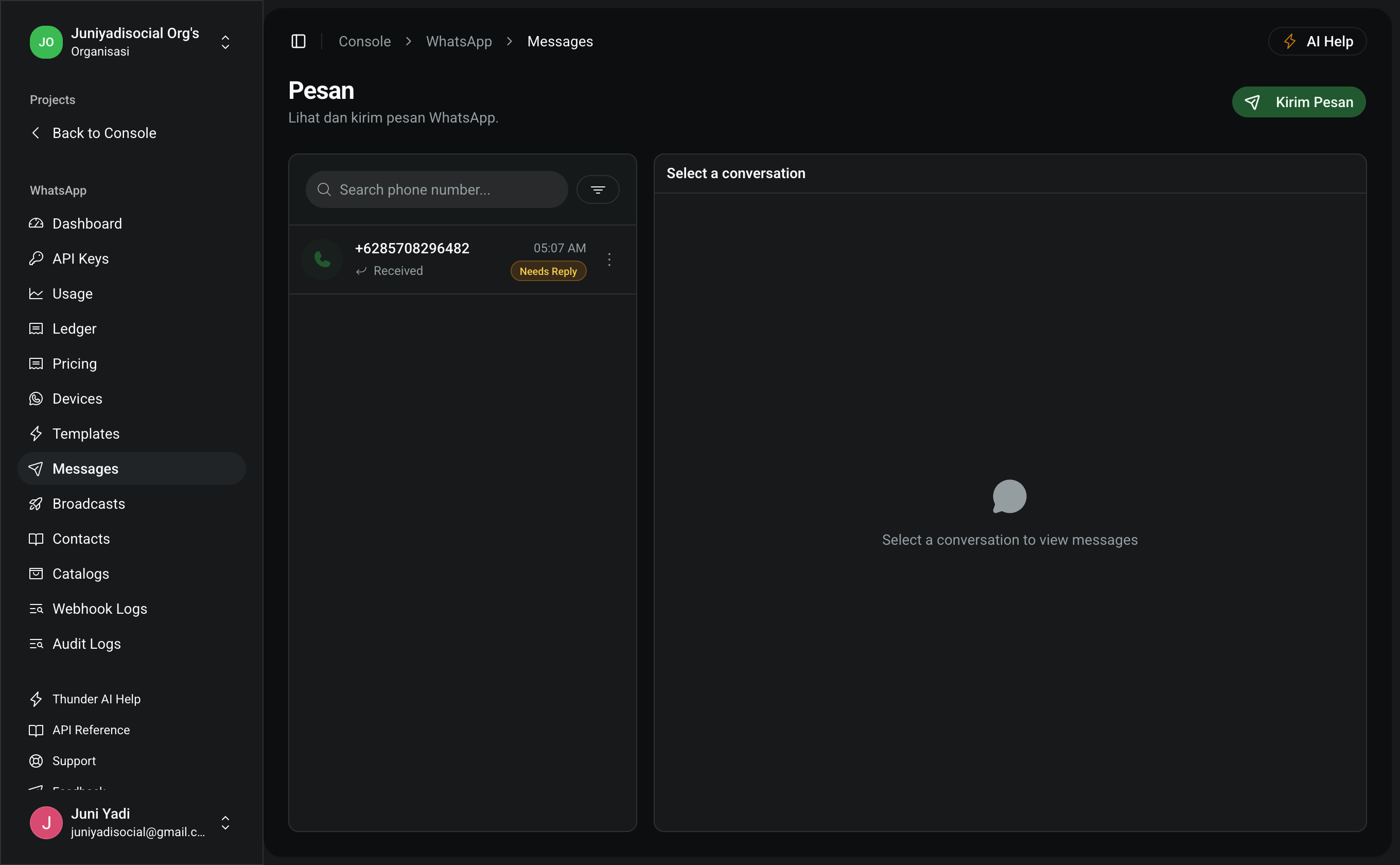
1. Sending a Template Message (Step-by-Step)
- Select the Sender Device (phone number) from the top-left device dropdown.
- Enter the destination Recipient Phone Number in international E.164 format (e.g.
+6281234567890). - Select an approved template from the Template Selector.
- Input values for all required dynamic parameters (
{{1}},{{2}}). - Click Send Message to dispatch the message via Meta Cloud API.
2. Message Lifecycle & Status Progression
Every message moves through well-defined lifecycle stages:
graph LR
    PENDING[PENDING: Queued locally] --> SENT[SENT: Accepted by Meta]
    SENT --> DELIVERED[DELIVERED: Reached user device]
    DELIVERED --> READ[READ: Opened by user]
    SENT --> FAILED[FAILED: Undelivered / Insufficient Balance]
- PENDING: Enqueued in the message dispatch worker.
- SENT: Successfully accepted by Meta Cloud API.
- DELIVERED: Successfully delivered to the recipient's device (double gray checkmark).
- READ: Opened and viewed by recipient (double blue checkmark).
- FAILED: Rejected by Meta (e.g., number not registered on WhatsApp or insufficient organization quota).
3. Auditing & Webhook Tracking
- Webhook Logs (
/console/whatsapp/webhook-logs): View inbound delivery receipts, timestamps, and error codes. - Audit Logs (
/console/whatsapp/audit-logs): Review user attribution and financial ledger debit entries associated with the message.