
WhatsApp Message Templates allow businesses to send proactive notifications, order updates, OTP verification codes, and marketing broadcasts to customers. Because WhatsApp protects user inboxes, all templates must be pre-approved by Meta before you can send them.
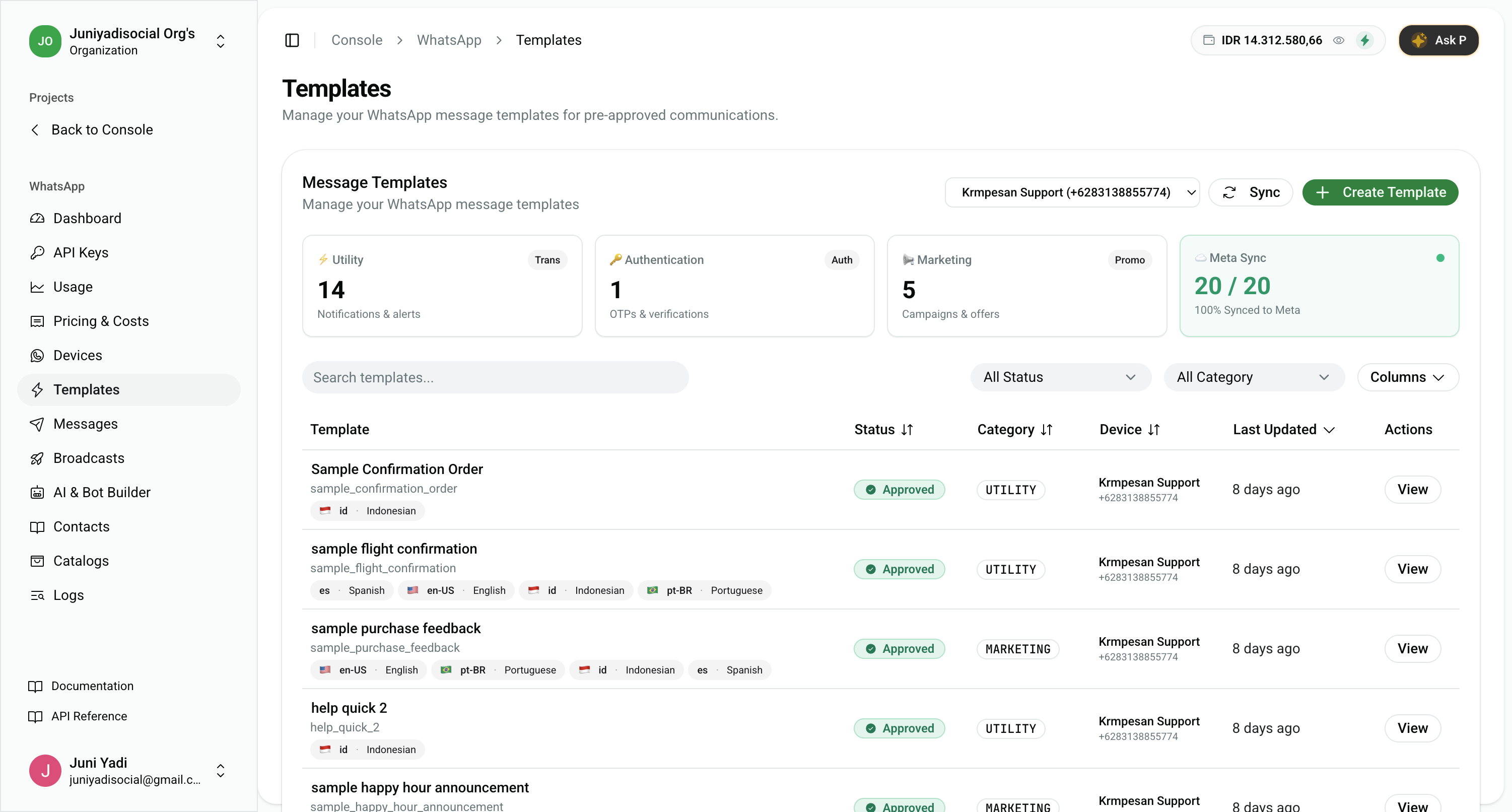
1. Templates Management Dashboard
Navigate to Console > WhatsApp > Templates (/console/whatsapp/templates).
The Templates Dashboard provides complete visibility into your template catalog:
- Meta Sync Status Card: Displays the sync percentage (e.g.
20 / 20 100% Synced to Meta). - Category Counts: Instant count of active templates across ⚡ Utility (1.0x), 🔑 Authentication (1.5x), and 📢 Marketing (2.0x).
- Search & Filters: Search by template name or filter by approval status (Approved, Pending, Rejected) and category.
- Sync from Meta: Pulls the latest approval statuses and registered languages directly from Meta Graph API.
- Create Template: Opens the interactive template designer.
2. Interactive Template Builder
Click "Create Template" (/console/whatsapp/templates/new) to design a new template.
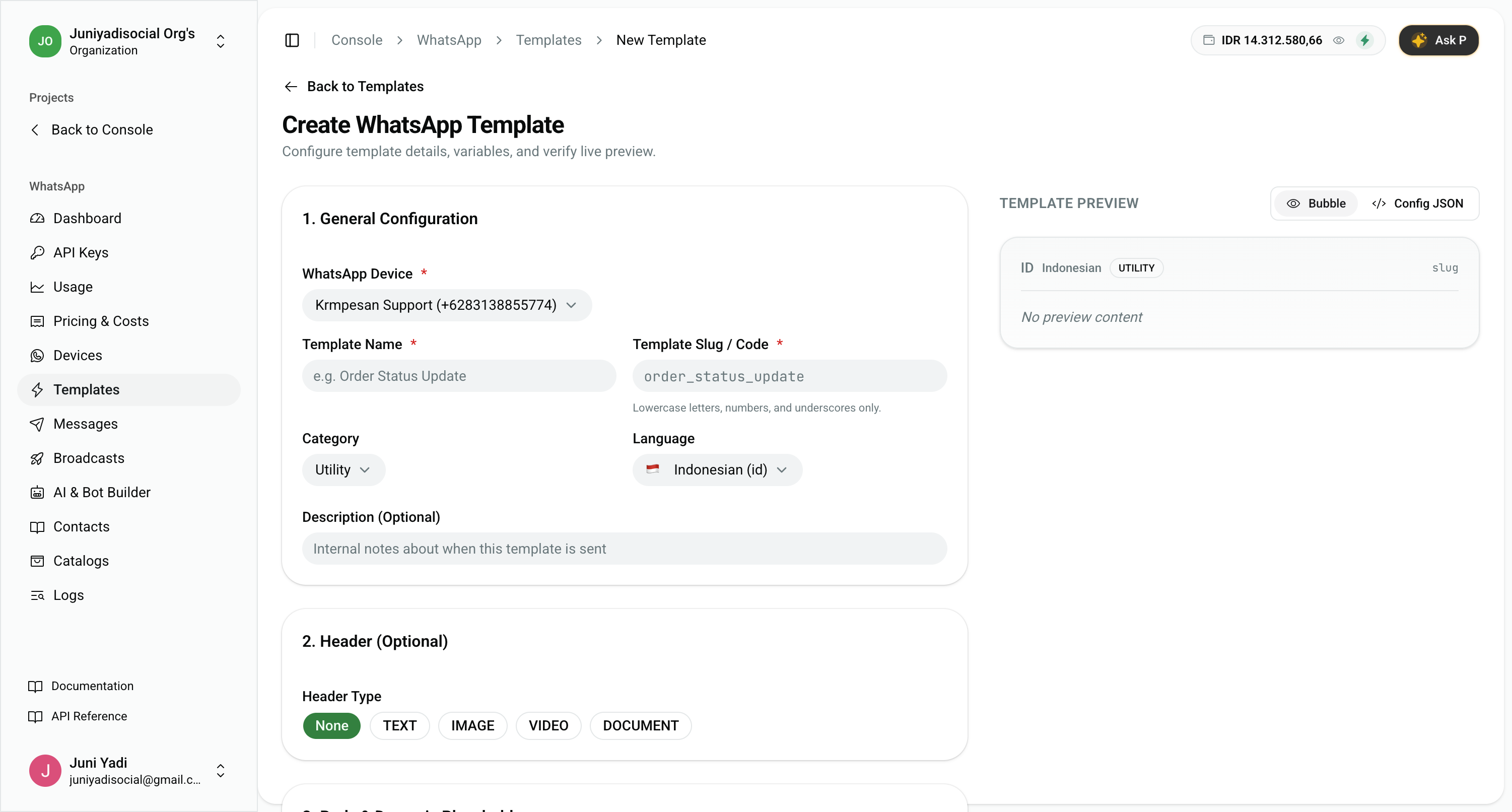
Key Configuration Sections:
- General Configuration:
- WhatsApp Device: Select the target sender business number.
- Template Name & Slug: Human-readable name and snake_case identifier (e.g.
order_delivery_update). - Category: Select
Utility,Authentication, orMarketing. - Language: Choose destination language (e.g.
Indonesian (id),English (en-US)).
- Header (Optional):
- Choose header format: None, TEXT, IMAGE, VIDEO, or DOCUMENT.
- Body & Dynamic Placeholders:
- Rich formatting toolbar: Bold (
*text*), Italic (_text_), Strikethrough (~text~), and Monospace (`code`). - Variable Insertion: Click Variable to insert sequential placeholders (
{{1}},{{2}}). - Real-time character counter (max 1024 characters).
- Rich formatting toolbar: Bold (
- Footer (Optional):
- Subtle disclaimer text (max 60 characters).
- Interactive Buttons (Max 3):
- Add Quick Reply buttons, URL CTA links, or Phone Call actions.
- Live Preview Panel:
- Switch between realistic mobile Bubble view and raw Config JSON view.
3. "Ask P" AI Copilot: Pre-Submission Audit
PFNApp includes an in-situ AI assistant named Ask P to help avoid Meta rejections and resolve category classification disputes.
Click the "Ask P" button in the header toolbar at any time to open the intelligent guidance drawer:
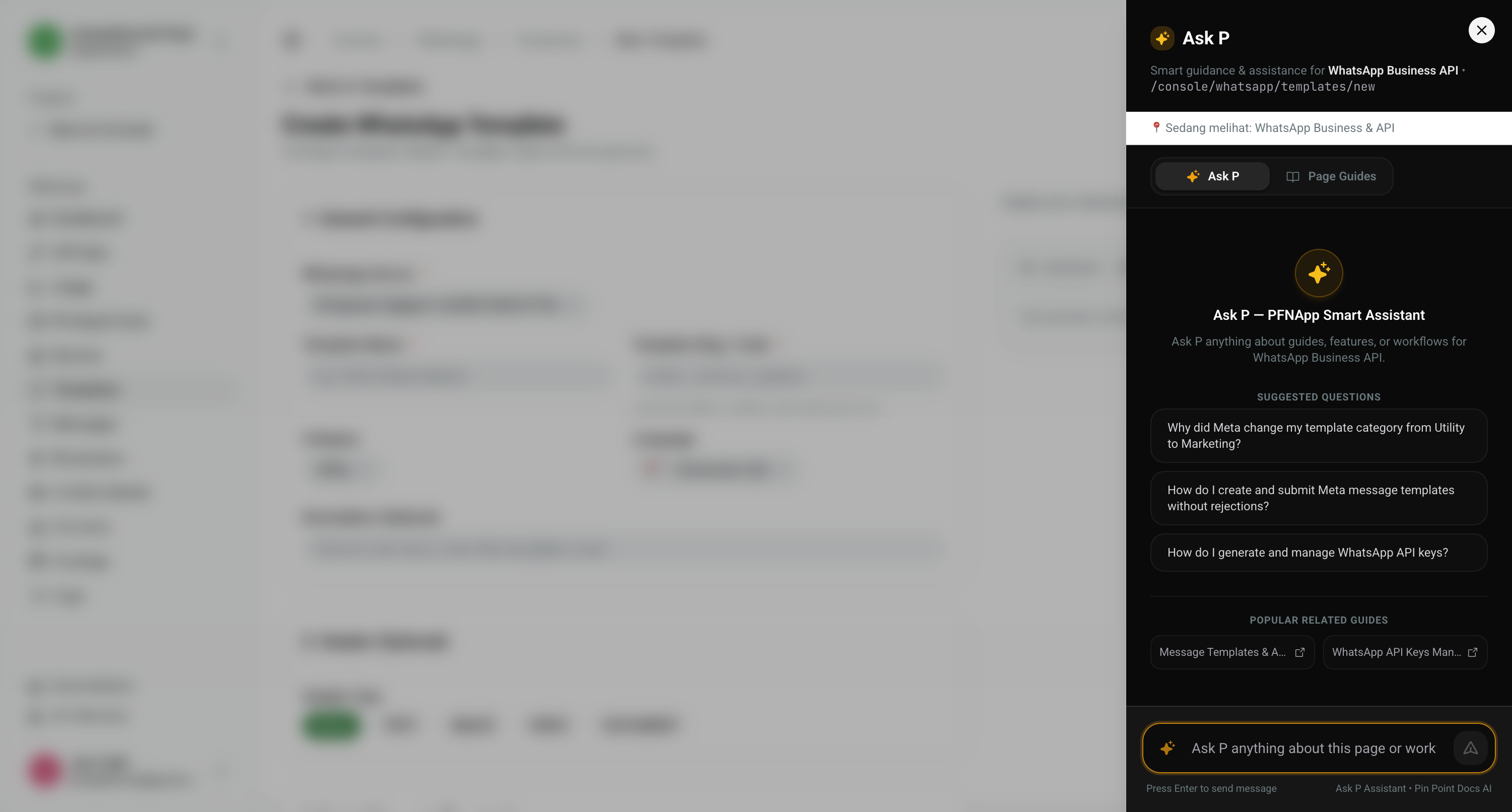
What Ask P Can Do:
- Template Policy Pre-Audit: Analyzes your draft body text for hidden promotional keywords (e.g. "diskon", "promo", "limited time") that could cause Meta to reject a Utility template or force a reclassification to Marketing.
- Suggested Q&A: One-click answers to frequent questions like "Why did Meta change my template category from Utility to Marketing?" and "How do I design approval-safe authentication OTP templates?".
- Direct Docs Pin-Pointing: Links directly to relevant documentation sections without leaving your active editing session.
4. Template Categories & Rules Summary
| Category | Typical Multiplier | Common Use Cases | Non-Negotiable Rule |
|---|---|---|---|
UTILITY | 1.0x | Order receipts, tracking links, booking confirmations, account alerts | Zero promotional words, discount offers, or upsells allowed. |
AUTHENTICATION | 1.5x | One-time passwords (OTP) & 2FA security codes | Code only. Must include copy code CTA or security disclaimer. |
MARKETING | 2.0x | Product announcements, promotional vouchers, cart recovery | Full rich media, emojis, and promotional links permitted. |
⚠️ Mixed Content Rule: If a message contains 90% transactional confirmation and only 10% promotional text, Meta classifies the entire message as MARKETING.