
A pipeline is the list of steps a customer goes through before buying, for example:
Baru (new) → Tertarik (interested) → Penawaran (offer) → Negosiasi → Deal (won) or Batal (lost)
Each customer chat that is being sold to has a deal: a card that sits in one of these steps. The Pipeline board shows all cards at once, like sticky notes on a wall.
Set up your steps first in Settings > Pipeline. See WhatsApp Message Settings.
1. Open the board
- Open WhatsApp > Messages.
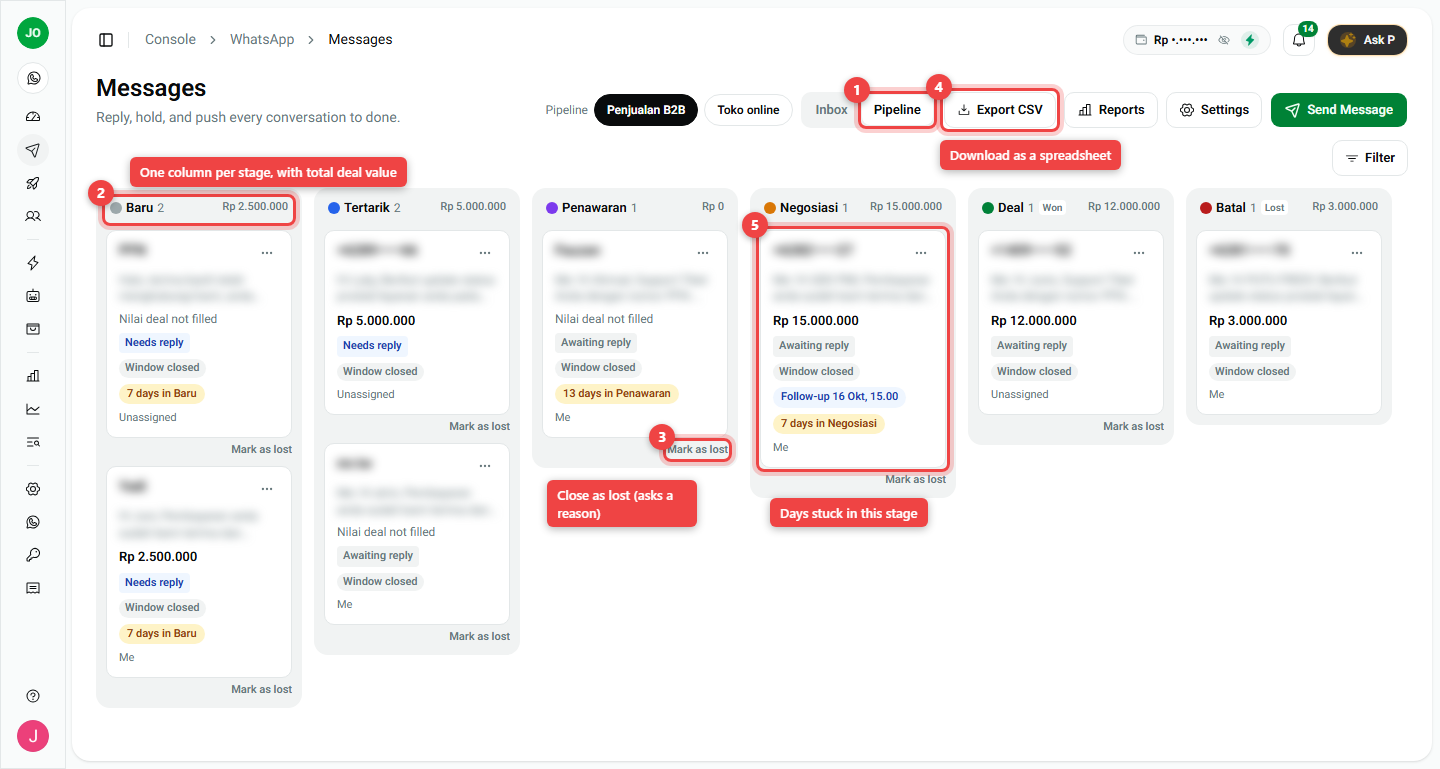
- Click Pipeline at the top (number 1).
- If you have more than one pipeline, pick it with the buttons next to the word Pipeline (for example Penjualan B2B or Toko online).
2. Read the board
- Columns (number 2): one per stage. The top shows how many deals are in it and their total value, for example Baru 2 · Rp 2.500.000.
- Cards: one per customer. A card shows the deal value, the chat status, whether the 24-hour window is closed, the owner, and any follow-up date.
- "7 days in Negosiasi" (number 5): a yellow badge means the deal has stayed in that stage longer than you planned. Time to follow up.
3. Move a deal
You can move a deal in two ways:
- On the board: drag the card to another column.
- In the chat: open the chat and click a stage in the right panel.
If a stage needs information first (for example Nilai deal = deal value), a small form asks for it. Fill it in and the move is saved.
4. Close a deal
- Won: move the card into the won stage (for example Deal).
- Lost: click Mark as lost on the card (number 3), or move it to the lost stage (for example Batal). Pick a reason, such as Price. Reasons help you see later why customers did not buy.
A closed deal is saved as history. If the same customer writes again later, the chat shows a banner that offers to start a new deal (deal #2). The first deal stays unchanged.
5. Download the list
Click Export CSV (number 4) to download the deals as a spreadsheet you can open in Excel or Google Sheets. (Owners and supervisors only.)
Summary
| I want to... | Do this |
|---|---|
| See all deals | Messages > Pipeline |
| Move a deal | Drag the card, or click a stage in the chat |
| Close as lost | Mark as lost > pick a reason |
| Find stuck deals | Look for the yellow "N days in ..." badge |
| Get a spreadsheet | Export CSV |
- Stages, required fields and lost reasons are set in Settings > Pipeline.
- Closed deals are never overwritten; a returning customer gets a new deal.