
A broadcast sends the same message to many customers at once, for example a promotion or an announcement. It uses your contacts, the saved list of your customers.
Part A. Contacts
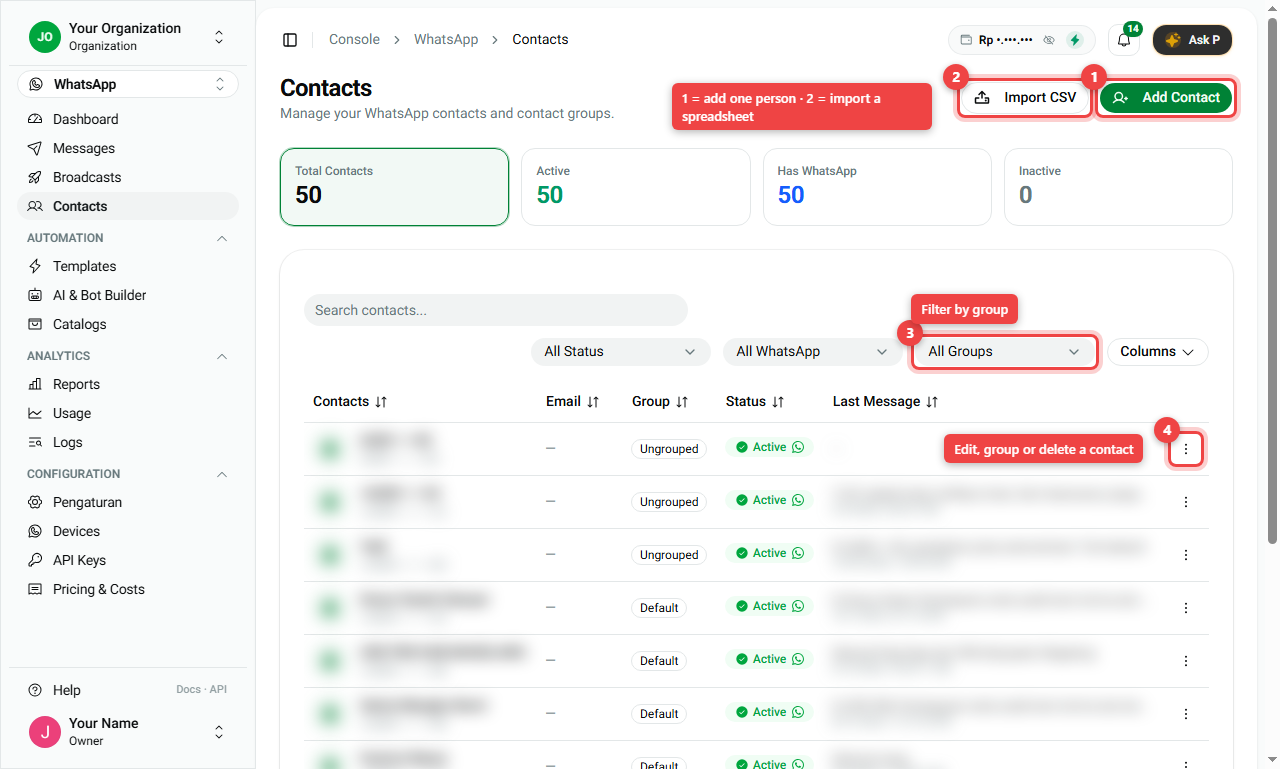
- Open WhatsApp > Contacts.
- Add people:
- Add Contact (number 1): add one person by hand.
- Import CSV (number 2): add many at once from a spreadsheet (CSV file).
- All Groups (number 3): show only one group, for example Default or VIP.
- The menu at the end of each row (number 4): edit the contact, move it to a group, or delete it.
The cards at the top count Total Contacts, Active, Has WhatsApp (the number really uses WhatsApp) and Inactive.
Part B. Send a broadcast
Open WhatsApp > Broadcasts and click New Broadcast. There are four steps.
Step 1. Number, template and language
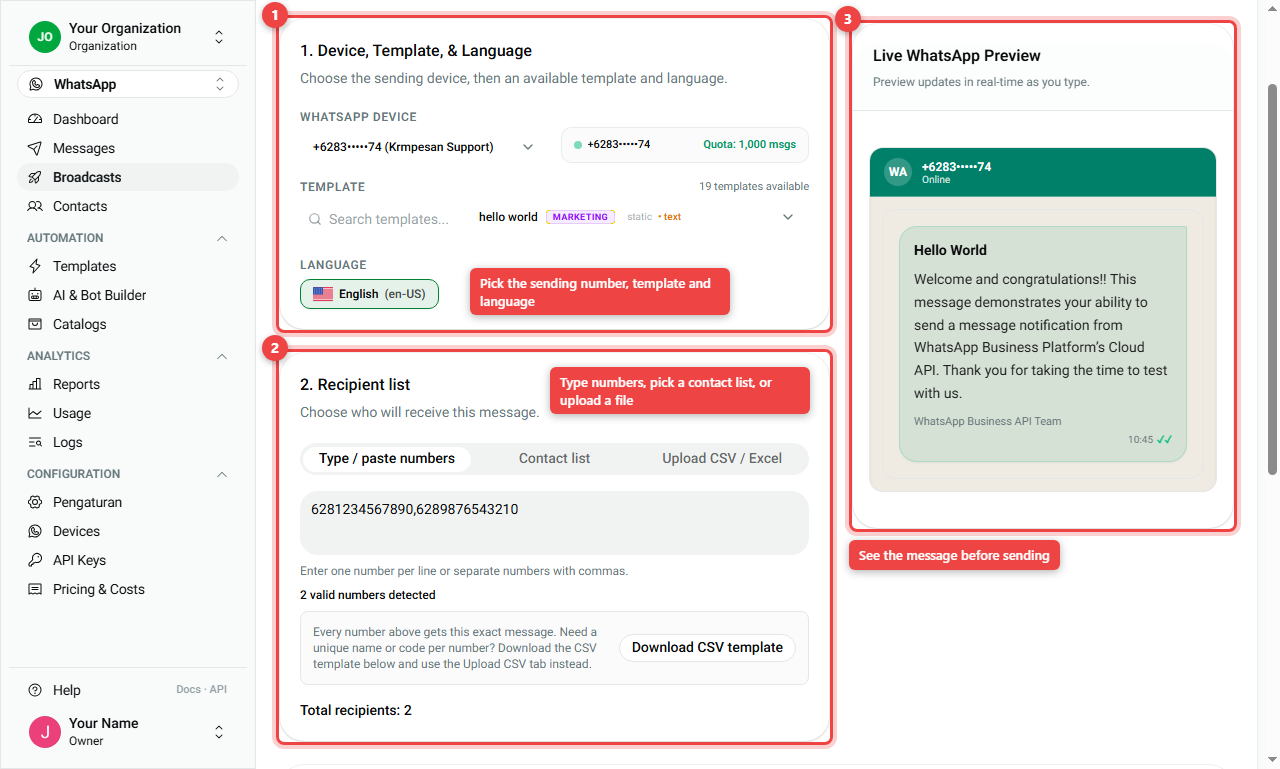
Choose the WhatsApp device (your sending number), the template, and the language (number 1). Only approved templates are shown.
Step 2. Recipients
Choose who gets it (number 2), in one of three ways:
- Type / paste numbers: one number per line, or separated by commas.
- Contact list: pick a group from your contacts.
- Upload CSV / Excel: a file with your numbers. Use this if each person needs their own name or code in the message. Click Download CSV template to get the right format.
Total recipients shows how many people will receive it.
Step 3. Preview
The Live WhatsApp Preview (number 3) shows exactly what customers will see.
Step 4. Final check (Preflight) and send
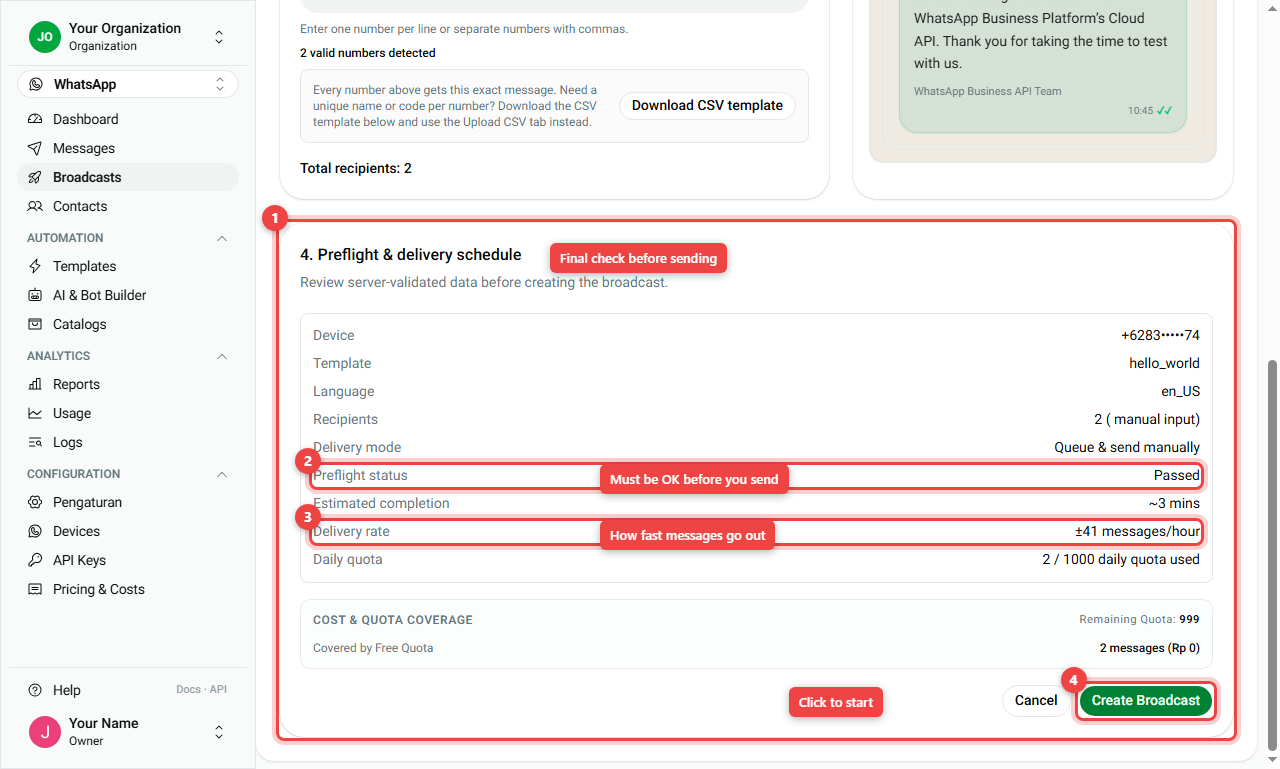
Before sending, the system checks everything for you (number 1):
- Preflight status (number 2) must be OK. If something is wrong (for example no approved template, or not enough quota), it tells you what to fix.
- Delivery rate (number 3): how fast messages go out, plus the estimated completion time and your daily quota.
- Click Create Broadcast (number 4) to start.
After you create it, the Broadcasts list shows each campaign with its Status (for example COMPLETED or COMPLETED WITH ERRORS) and Progress (for example 1 / 1, 100%, 1 failed). Click View for the details per recipient.
Summary
| I want to... | Go to | Click |
|---|---|---|
| Add one customer | Contacts | Add Contact |
| Add many customers | Contacts | Import CSV |
| Send to many people | Broadcasts | New Broadcast |
| Personalise per person | New Broadcast | Upload CSV / Excel (use the CSV template) |
| Start sending | New Broadcast | Create Broadcast after Preflight is OK |
- Broadcasts use approved templates only.
- Messages go out gradually; check Estimated completion in Preflight.