
In PFNApp, each WhatsApp number you send from is called a device. This guide orders and connects one.
Prepare first
- A phone number for your business (an office line or a mobile number both work).
- That number must not be active in the normal WhatsApp or WhatsApp Business app on any phone. Remove it from the app first.
- A display name for your business (3 to 25 characters) and a link to your logo.
Step 1. Open Devices
- In the left menu, open WhatsApp > Devices.
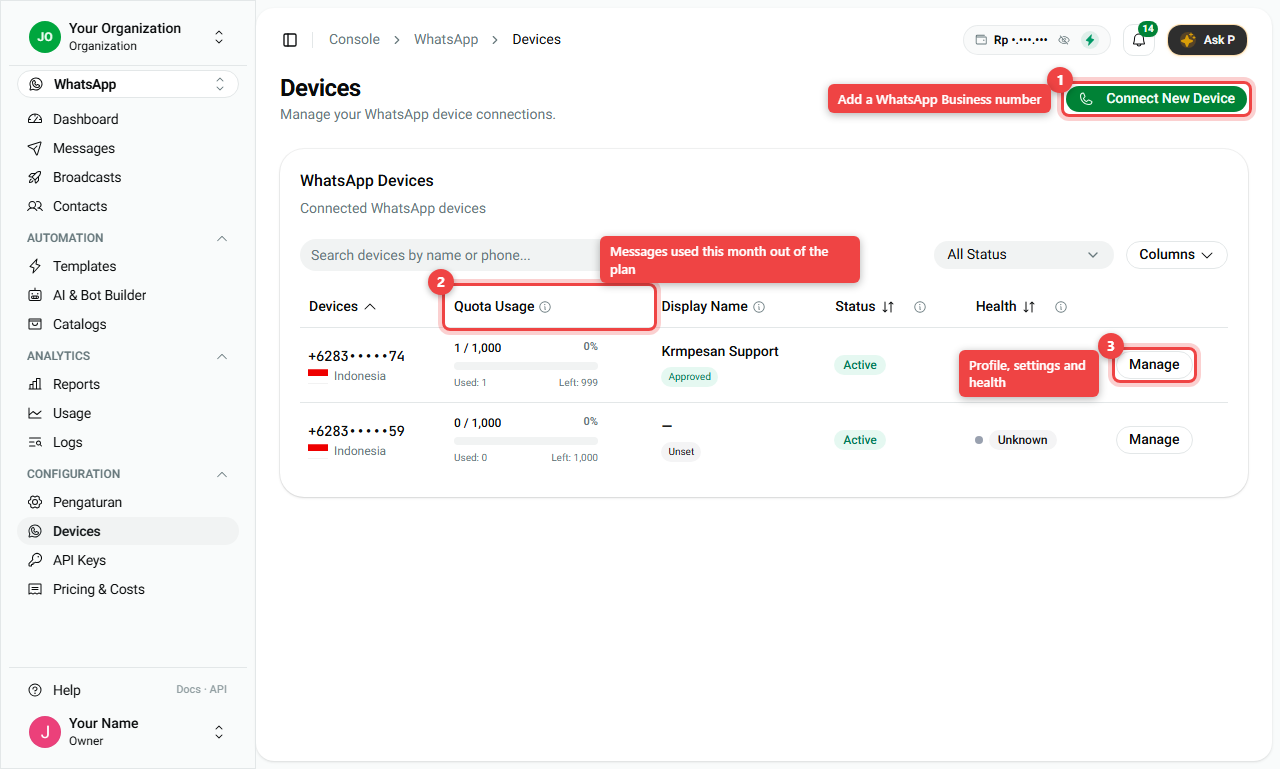
- Click Connect New Device (number 1).
Step 2. Fill in the order
The Subscribe to WhatsApp window opens.
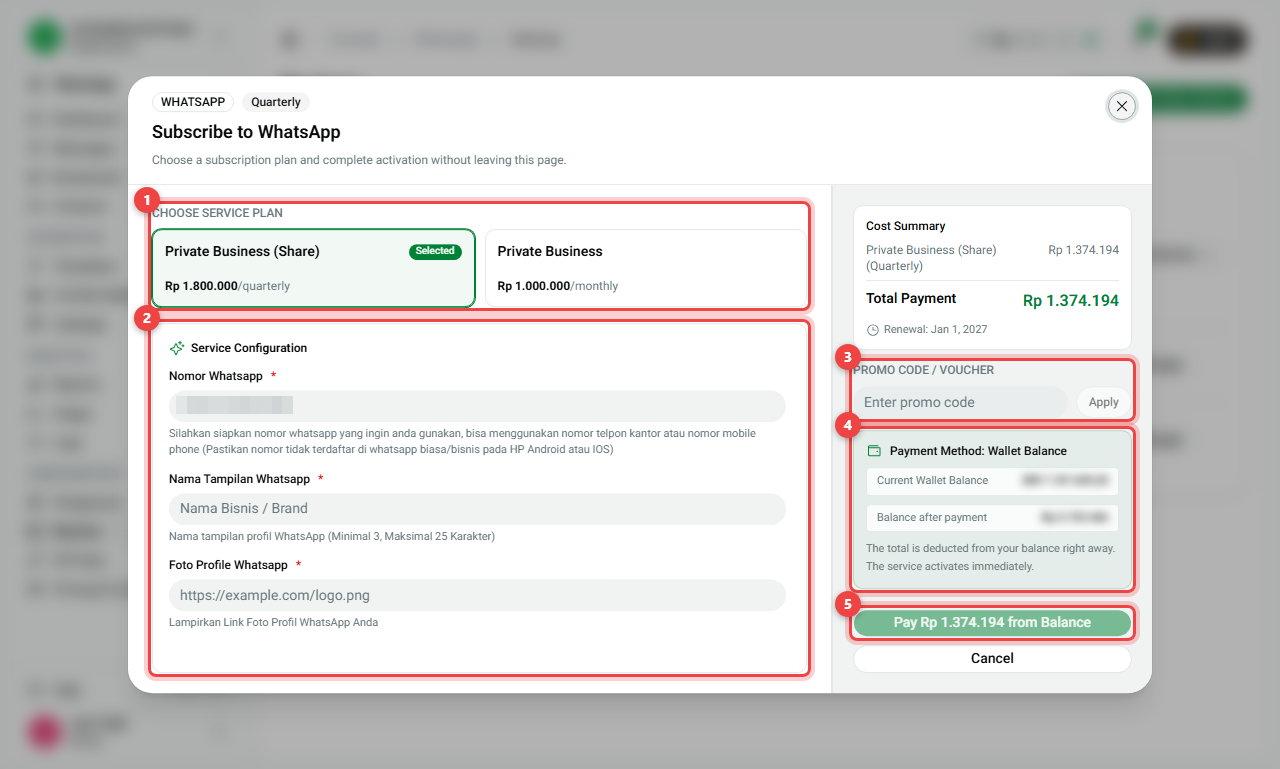
- Choose a service plan (number 1). The price per month or per quarter is on each card.
- Service configuration (number 2):
- Nomor Whatsapp: the number to connect, for example
+6281234567890. - Nama Tampilan Whatsapp: the name customers see.
- Foto Profile Whatsapp: a link to your logo image.
- Nomor Whatsapp: the number to connect, for example
- Promo code / voucher (number 3): type it and click Apply if you have one.
- Payment (number 4): shows your balance and what is left after paying.
- Click the pay button (number 5).
Not enough balance? Pay by invoice
- Balance is enough: the button says Pay Rp ... from Balance. The money is taken right away and the number is set up.
- Balance is short or zero: the button says Create Invoice. We create an invoice, also emailed to your billing contact. On the invoice page you can use your balance first and pay the rest by QRIS or bank transfer. You do not need to top up first.
- The invoice is due in 7 days. The number activates by itself once it is paid.
Step 3. Check your number
Back on Devices, each number shows:
- Quota Usage (number 2): messages used this month out of your plan, for example 1 / 1,000.
- Display Name: your business name and whether WhatsApp Approved it.
- Status and Health: whether the number is working.
- Manage (number 3): open the number to see its WhatsApp profile, limits and settings.
Step 4. The number's own page
Click Manage on a number to open its page:
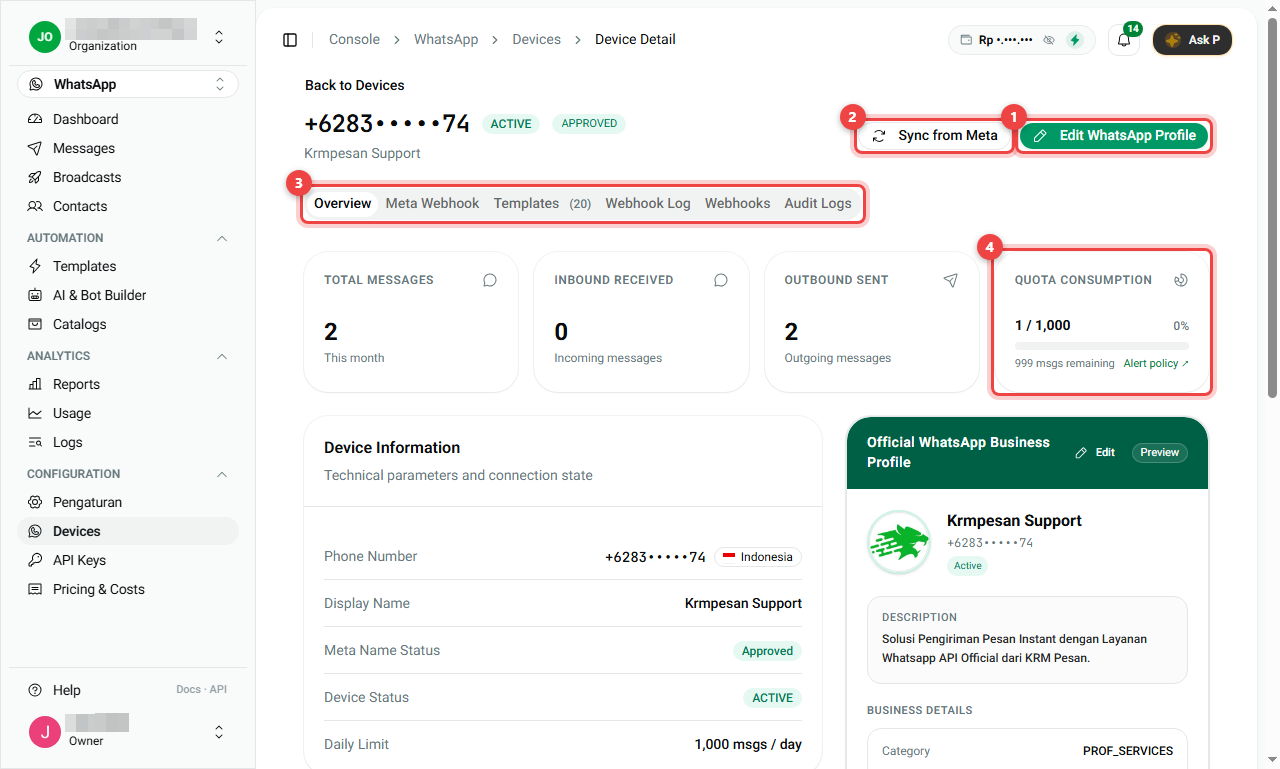
- Edit WhatsApp Profile (number 1): change the display name, photo, description, email and website that customers see.
- Sync from Meta (number 2): fetch the latest profile and status from WhatsApp.
- Tabs (number 3): Overview, Meta Webhook, Templates (the templates of this number), Webhook Log, Webhooks and Audit Logs. Most of these are for technical users.
- Quota Consumption (number 4): messages used this month and how many are left.
Further down: Device Information (status and daily limit), Subscription & Renewal (plan, price, next renewal, with Open Billing) and a preview of your Official WhatsApp Business Profile.
Summary
- Devices > Connect New Device.
- Pick a plan, enter number, name and photo link.
- Pay from balance, or Create Invoice and pay by QRIS/transfer within 7 days.
- Check Quota Usage and Health on the Devices page.
- Remove the number from the WhatsApp phone app before connecting it.
- Next: Reply to customers in the Inbox.