
This page decides how your team handles chats. Open it from the left menu WhatsApp > Pengaturan, or click Settings at the top of the Messages page.
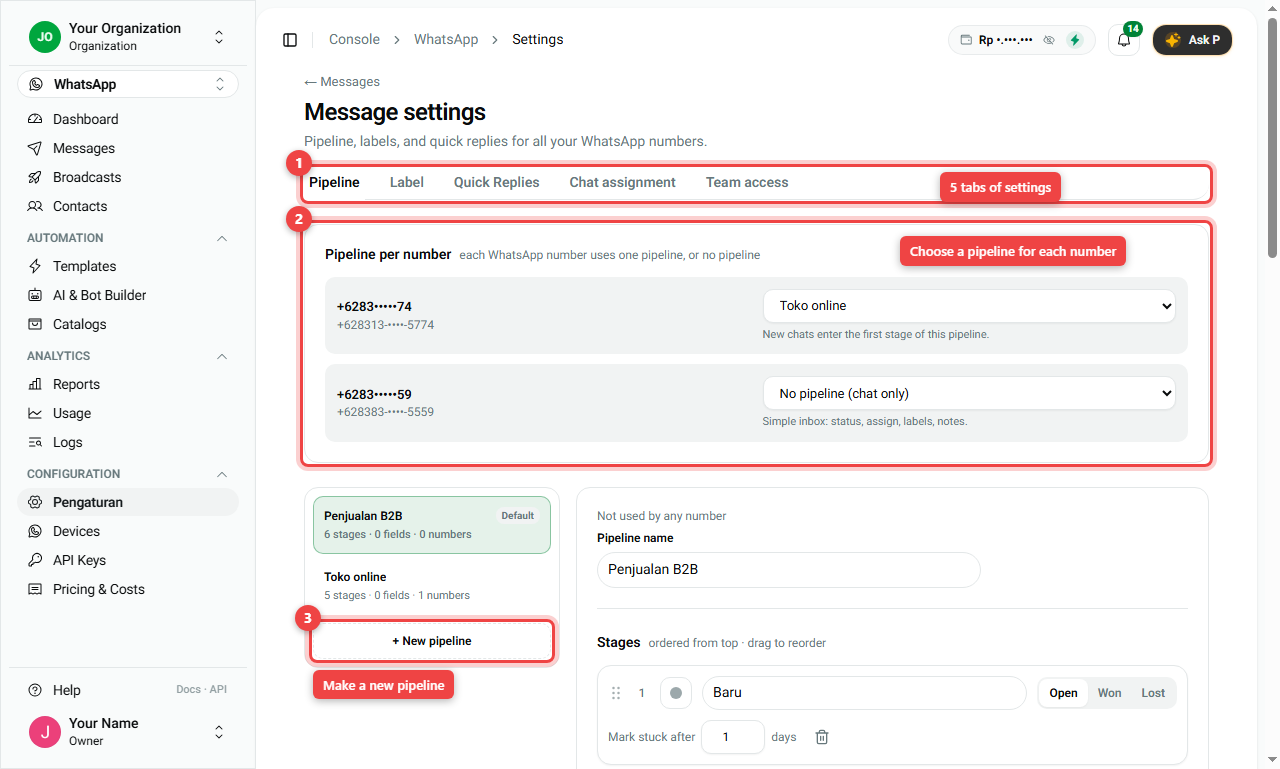
There are 5 tabs: Pipeline, Label, Quick Replies, Chat assignment and Team access.
1. Pipeline: your sales steps
A pipeline is the list of steps a customer goes through, for example New → Interested → Offer → Deal. See Track Sales with the Pipeline for how it is used.
Choose a pipeline for each number
- Open the Pipeline tab (number 1).
- In Pipeline per number (number 2), choose a pipeline for each WhatsApp number.
- Pick No pipeline (chat only) if that number is just for support. Its inbox then only has status, owner, labels and notes.
- To make a new one, click + New pipeline (number 3). You can start from a ready template such as Penjualan B2B (B2B sales) or Toko online (online shop).
Edit the stages
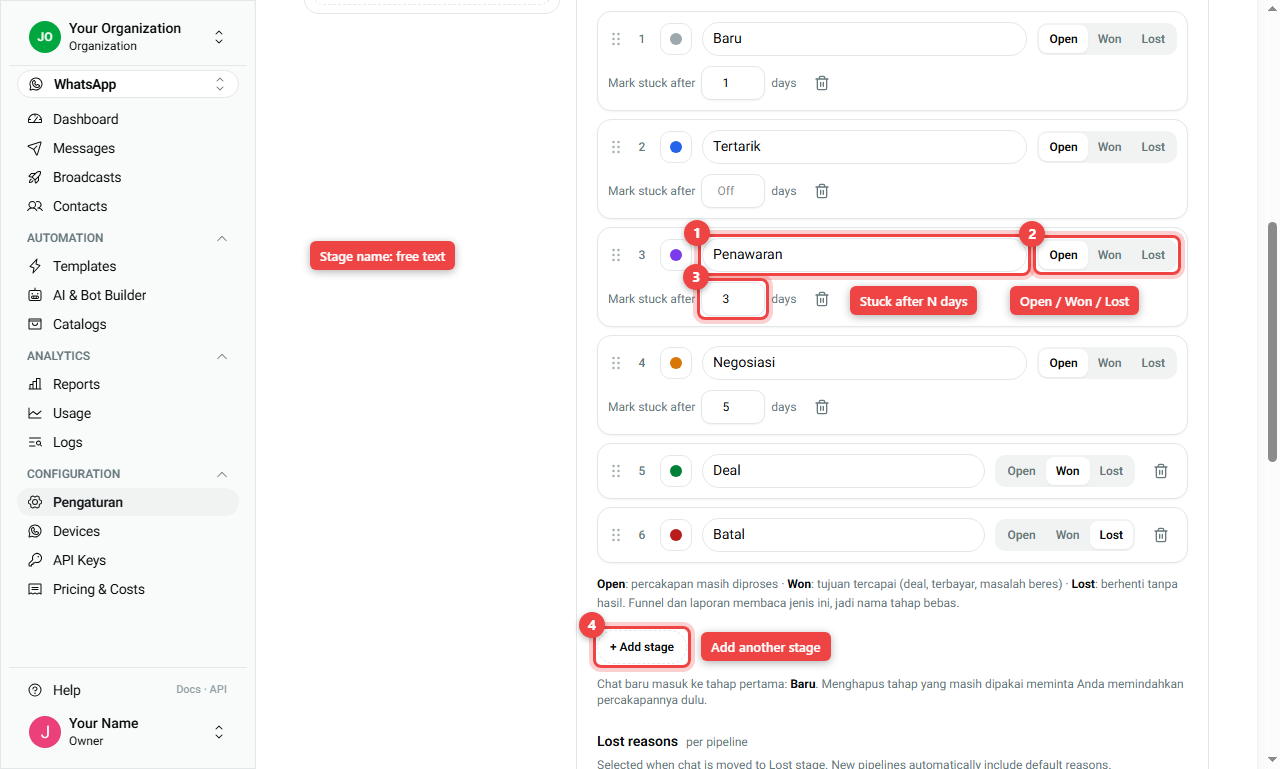
- Click a pipeline on the left to open it.
- For each stage you can change:
- Name (number 1): any words you like.
- Type (number 2): Open (still in progress), Won (goal reached: paid, deal done) or Lost (stopped without result). Reports use this type, so the name can be anything.
- Mark stuck after N days (number 3): the card gets a yellow warning when it stays longer than this.
- Drag the dots on the left of a stage to change the order. Click + Add stage (number 4) to add one.
- Click Save pipeline at the bottom.
Further down the same page:
- Lost reasons: the reasons your team picks when a deal is lost (for example Price, Chose a competitor). Switch on Require lost reason to make it mandatory.
- Fields: extra information your team fills in for each deal, such as Nilai deal (deal value), city or invoice number. A field can be required from a certain stage, so nobody moves a deal to Offer without a value.
2. Label: tags for customers
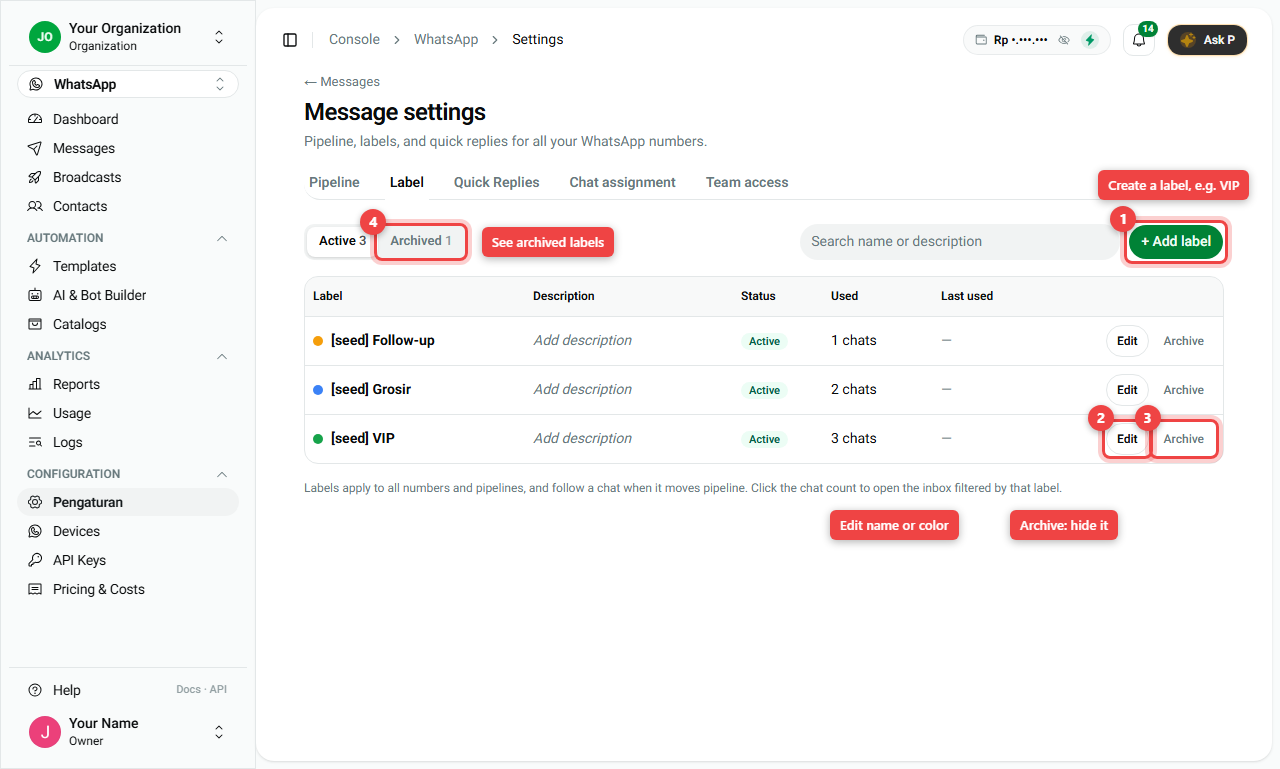
Labels are coloured tags such as VIP or Wholesale. They work across all numbers.
- Open the Label tab.
- Click + Add label (number 1), type a name, choose a colour, save.
- Edit (number 2) changes the name, colour or description. Archive (number 3) hides a label from the pickers but keeps it on old chats.
- Archived (number 4) shows hidden labels so you can restore them.
Click the chat count of a label (for example 3 chats) to open the inbox filtered by that label.
3. Quick Replies: ready-made answers
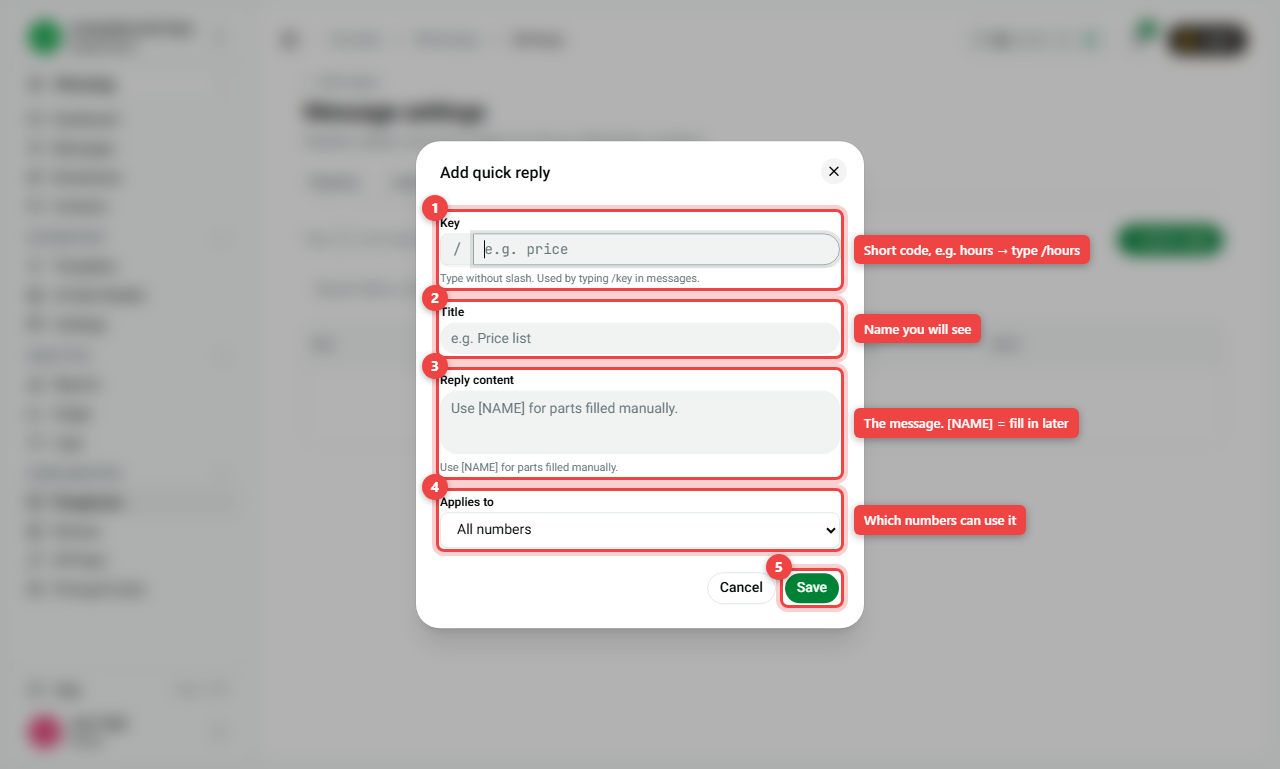
- Open the Quick Replies tab and click + Quick reply.
- Fill in the form:
- Key (number 1): a short code, for example
hours. In a chat you then type/hours. - Title (number 2): a name you will recognise.
- Reply content (number 3): the message. Put parts you fill in each time in square brackets, like
[NAME]. - Applies to (number 4): all numbers, or one number only.
- Key (number 1): a short code, for example
- Click Save (number 5).
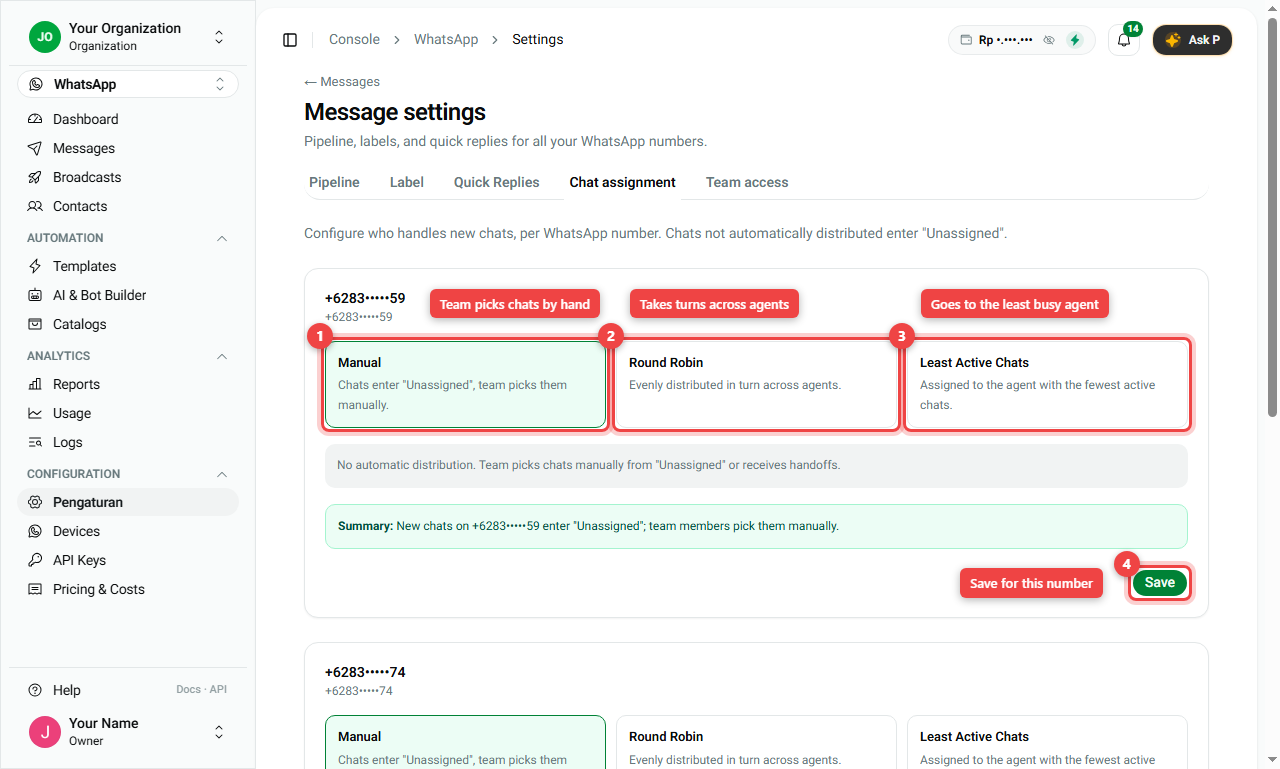
4. Chat assignment: who gets new chats
For each WhatsApp number, choose how new chats are shared:
- Manual (number 1): new chats go to Unassigned. Your team picks them up by hand.
- Round Robin (number 2): chats are given to agents in turn, one by one.
- Least Active Chats (number 3): each new chat goes to the agent with the fewest open chats.
- Read the green Summary line, then click Save (number 4) for that number.
At the bottom of this tab, Notifications lets each person choose to be told (in the app or by email) when they are mentioned, get a chat handed over, get a new chat, when the 24-hour window is about to close, or when a follow-up is due.
5. Team access: roles
- Open the Team access tab.
- In the Role column (number 1), choose Owner, Supervisor or Agent for each member. The owner role itself cannot be changed.
- Accessible numbers shows which WhatsApp numbers each person can see.
- The Permissions per role table (number 2) shows what each role may do.
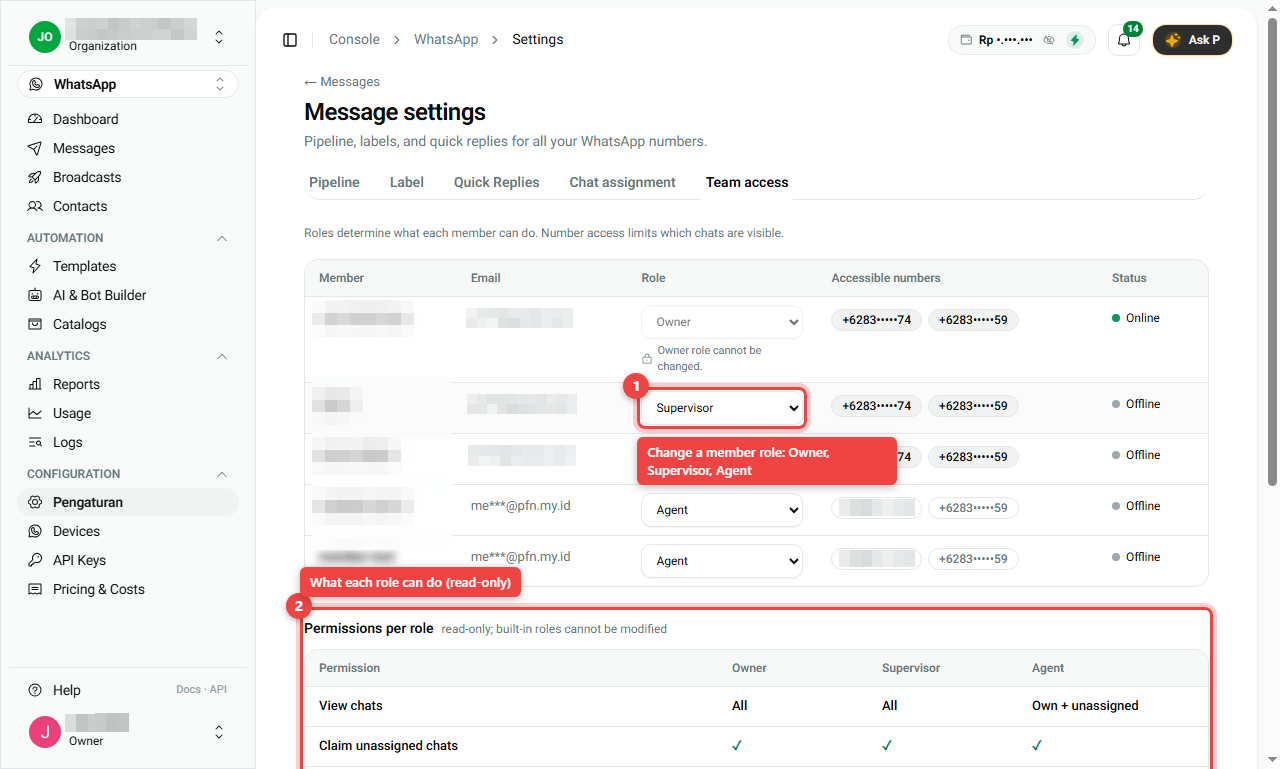
In short:
| Role | Can do |
|---|---|
| Owner | Everything, including team access |
| Supervisor | Everything except team access |
| Agent | Only own and unassigned chats; reports for own chats; no settings, no bulk actions, no export |
Summary
| Tab | Use it to |
|---|---|
| Pipeline | Choose a pipeline per number; edit stages, lost reasons and fields |
| Label | Create, edit and archive customer tags |
| Quick Replies | Save answers you can insert with / |
| Chat assignment | Manual, Round Robin or Least Active Chats per number |
| Team access | Give each member the Owner, Supervisor or Agent role |
- Always click Save (or Save pipeline) after a change.
- Agents see only their own and unassigned chats.