
The Messages page is your shared WhatsApp inbox. Every customer chat from all your WhatsApp numbers lands here, so your whole team can reply from one place.
Words used here
- Chat: all messages with one customer.
- Assigned / owner: the teammate responsible for a chat. Unassigned means nobody yet.
- 24-hour window: WhatsApp's rule. You can type any message for 24 hours after the customer last wrote. After that you can only send an approved template (a pre-approved message) until they reply.
- Template: a message approved by WhatsApp in advance. See Message Templates.
1. Open the inbox
- In the left menu, open WhatsApp > Messages.
- The page has these parts:
- Search (number 1): type a name or number to find a chat.
- Today (number 2): how many chats need a reply, are awaiting the customer, have a window closing in under 2 hours, and are unassigned.
- Inbox (number 3): the chat list. Pipeline (number 4): the sales board, see Track Sales with the Pipeline.
- Send Message (number 5): start a new chat with a template.
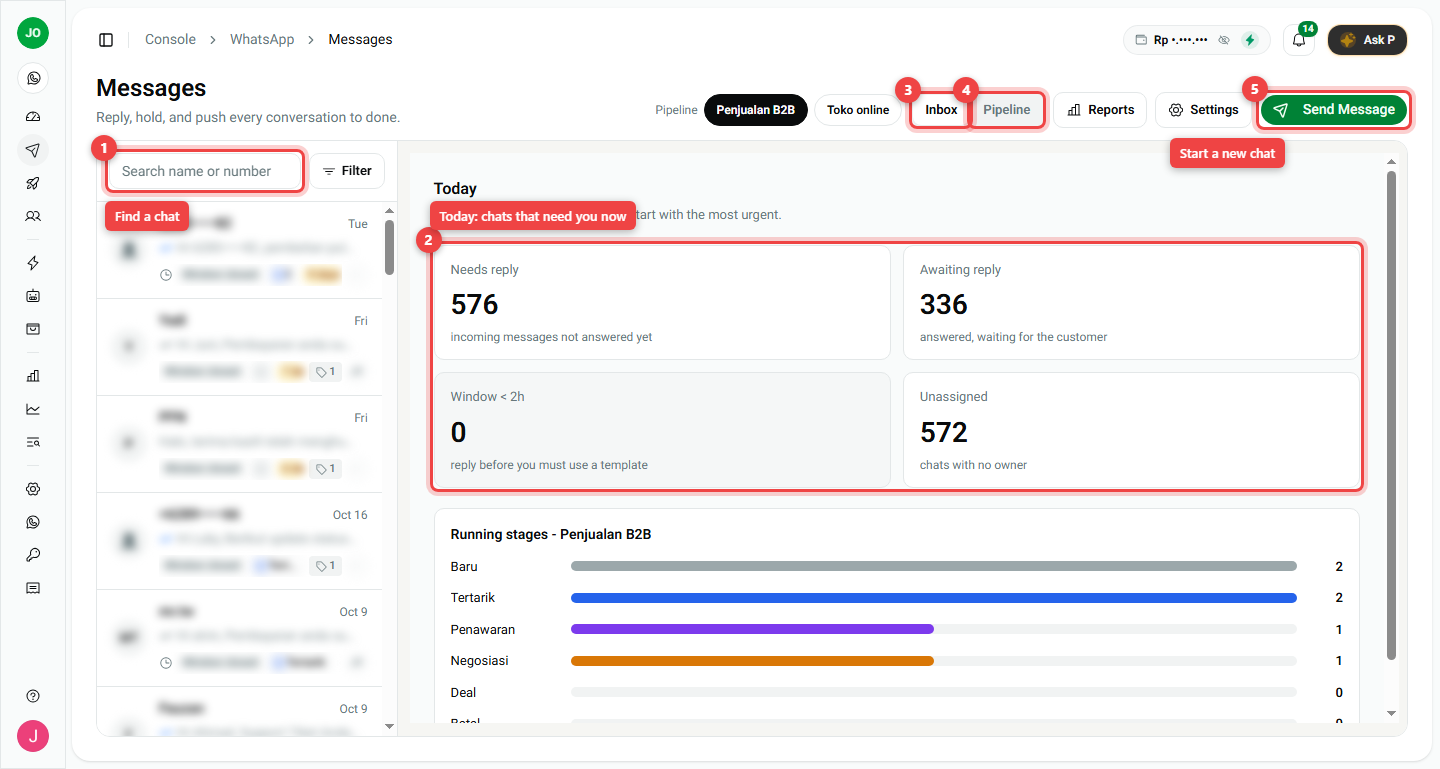
Customer names and messages in our screenshots are blurred for privacy.
2. Open a chat and reply
- Click a chat in the list on the left.
- The messages appear in the middle. Type your answer in the box at the bottom and press send.
- If the box shows 24-hour window is closed (number 6 in the next picture), you cannot type freely. Click Send template, pick an approved template, and send it. When the customer replies, the window opens again.
3. Use the right panel
The panel on the right keeps everything about this customer in one place:
- Assigned to (number 1): who handles this chat. Click it to take the chat or hand it to a teammate.
- Stage (number 2): where this customer is in your sales process, for example Baru → Tertarik → Penawaran → Deal. Click a stage to move the customer. Shown only when the number uses a pipeline.
- Status (number 3): Needs reply, Waiting for reply (you answered, waiting for the customer) or Resolved (done).
- Data (number 4): details such as the deal value. Click Edit to fill them in. Some stages require a field before you can move there.
- Follow-up (number 5): a reminder to contact the customer again, for example Tomorrow or Next week. A red follow-up means it is late.
- Label: tags like VIP or Wholesale to group customers. Click + Label to add one.
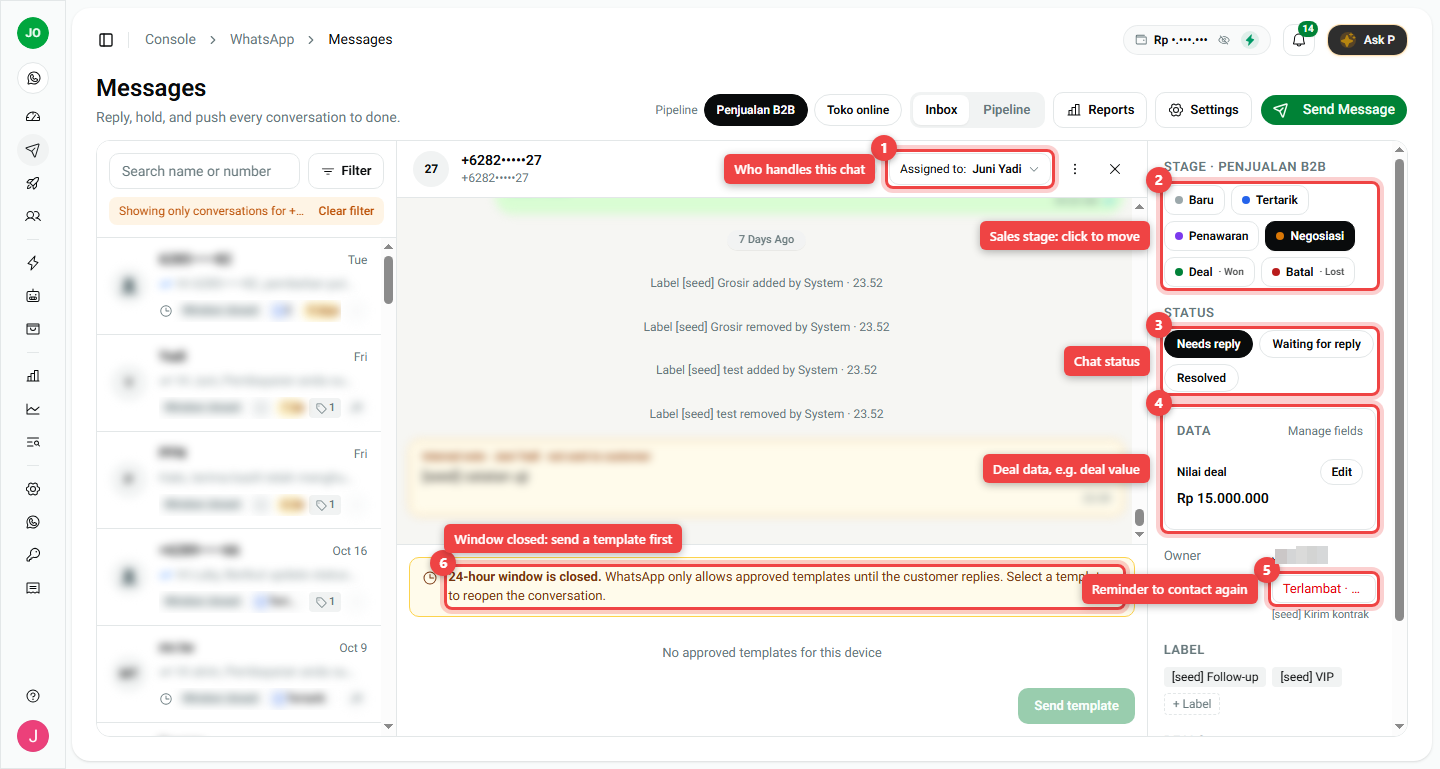
Every change (stage, label, owner) is written in the chat history as a small grey line, so the team can see who did what.
4. Quick replies: answer common questions fast
- Save your common answers first in Settings > Quick Replies. See WhatsApp Message Settings.
- In the reply box, type / and pick an answer from the list, or type its short key, for example
/hours. - Fill in any part in square brackets, like
[NAME], before you send.
5. Internal notes
Need to tell a teammate something about this customer? Hover the chat in the list, click its three-dot menu (Conversation actions), and choose Edit Notes. Notes show in a yellow box with the words not sent to customer. The customer never sees them.
The same menu also has Manage Labels and Delete Conversation.
6. Find and sort many chats
- Filter: click Filter above the list to show only chats with a certain stage, label, owner or status.
- Select many: hover a chat's picture and tick the box. Then move the stage, add a label, or change the owner for all selected chats at once. (Owners and supervisors only.)
Summary
| I want to... | Do this |
|---|---|
| See what needs me today | Look at the Today panel |
| Reply to a customer | Click the chat, type at the bottom, send |
| Reply after 24 hours | Click Send template and pick a template |
| Give the chat to a teammate | Assigned to > pick a name |
| Mark progress | Click a Stage or Status in the right panel |
| Remind myself later | Follow-up > pick a date |
| Answer faster | Type / to insert a quick reply |
- After 24 hours of silence from the customer, only templates can be sent.
- Internal notes stay inside your team.